
Unity ビルド自動化 - fastlane
Unity ビルド自動化 - fastlane
Build シリーズ (1 / 7)

目次
はじめに
会社で iOS/AOS ビルド全体を担当することになり、最初は Jenkins だけで Unity Build Pipeline による AOS 自動ビルド -> AppCenter アップロード -> Slack 通知までは成功しました。
ただ、iOS 自動化では Certificates、Provisioning Signing、BitCode on/off、Auto Signing など Xcode 設定の自動化に苦戦しました。
そこで CTO に fastlane を紹介してもらい、Jenkins Pipeline 単体よりかなり扱いやすいと感じました。必要なプラグインをターミナルで選択導入でき、Fastfile の lane をカスタムして複数ビルド環境に対応できます。本記事は fastlane / Jenkins / Unity Build Pipeline の設定・連携手順を整理したものです。
準備物 / 参考
- macOS
- Terminal で Homebrew と Bundler が導入済み
- Xcode と Unity が導入済み
1. fastlane 設定方法
fastlane インストール
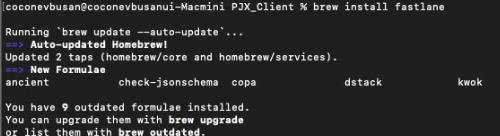
- Homebrew で fastlane を導入
- Terminal で
brew install fastlane - 権限問題時は
sudo brew install fastlane
- Terminal で
- bundler インストール
gem install bundler- gem がない場合は先に gem 環境を導入
- fastlane 導入先フォルダを指定
- まず対象パスへ移動
1
2
# "cd path"
cd /Users/..../GitLab/YourProject
fastlane は Xcode CLI ツールを使うため、Unity の場合は iOS 出力フォルダに入れる必要がある実ビルド用 Xcode フォルダと fastlane 管理用フォルダを分けないと、再ビルド時に FastFile が消える可能性がある- 実運用ではソース管理するため、プロジェクト内に fastlane を入れて develop/master へマージすればよい
- ビルドマシンは macOS 必須 (Mac mini 使用)。Windows では fastlane 不可
- まず対象パスへ移動
- fastlane 初期化
- Xcode プロジェクトのあるパスで
fastlane init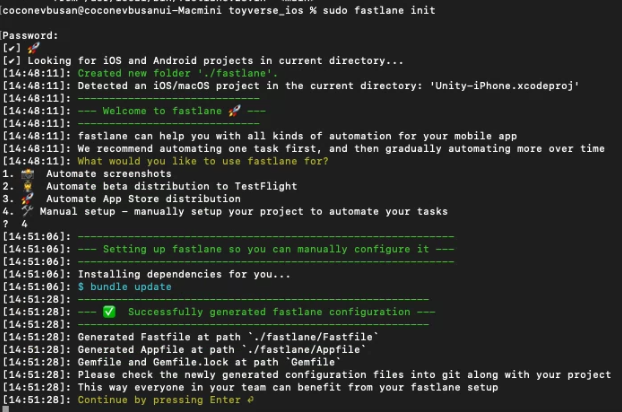
continue by pressing enterを進めると Apple ID / password 入力箇所が出る (AppFile で後から修正可)
- Xcode プロジェクトのあるパスで
fastlane ファイル構成
- 認証完了後、
Gemfile,Gemfile.lock,fastlane/AppFile,fastlane/FastFileが生成される。プラグイン導入後はPluginFileも生成される。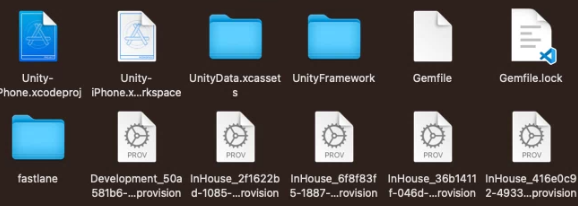
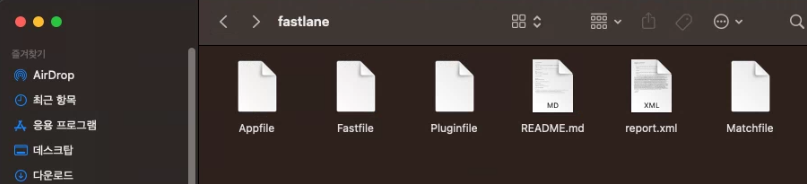
AppFile 設定
#コメントを外し、app_identifierを入力 (com.companyname.projectnameなど)apple_idも入力 (xxxx@coconev.co.jpなど)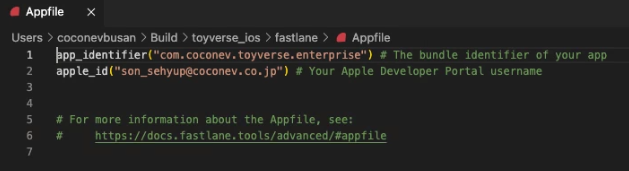
Plugin インストール
| 種類 | リンク |
|---|---|
| Unity ビルド | fastlane-plugin-unity |
| AppCenter アップロード | fastlane-plugin-appcenter |
| Slack bot | fastlane-plugin-slack_bot |
sudo fastlane add_plugin xxx実行後、インストールが終わるとPluginfileが生成される
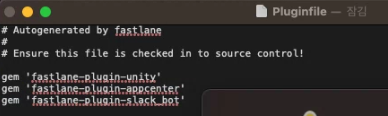
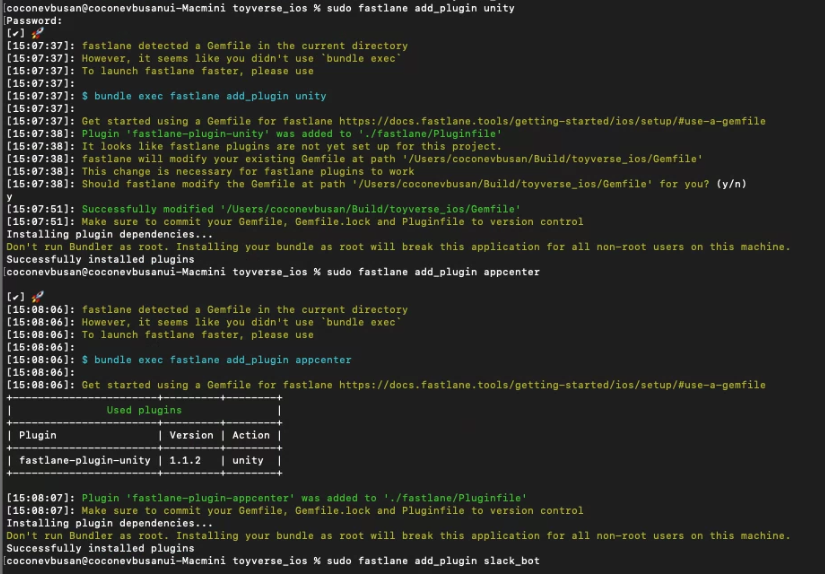
FastFile 設定
- fastlane の核心は FastFile。
Jenkins と組み合わせると、ビルドマシンの Unity プロジェクトと fastlane を使ってリモートビルド/配布が可能。
Jenkins の Execute Shell で fastlane init -> Addressable Build -> Unity Project Build -> AppCenter Upload まで実行できる。
fastlane ドキュメント: fastlane doc
FastFile は Ruby なので VS Code で編集した。
- platform
- そのまま iOS/Android のプラットフォーム指定。
1
2
platform :android do
platform :ios do
- そのまま iOS/Android のプラットフォーム指定。
- desc
- 説明コメント。fastlane log にも出力される。
1
2
3
platform: android do
 desc "Build AOS"
end
- 説明コメント。fastlane log にも出力される。
- lane
- lane 内に実行したい plugin 処理を書く。
複数 lane に分けてビルド設定・環境を構成可能。1 2 3 4 5
platform :android do desc "Build AOS" lane :aos_build do end end
- lane 内に実行したい plugin 処理を書く。
lane - plugin
- unity plugin
1
2
3
4
5
6
7
# unity plugin
unity(
build_target: "Android",
execute_method: "ProjectBuilder.BuildAndroid", # Unity Build Pipeline の static 関数
unity_path: "Applications/Unity/Hub/Editor/2022.3.4f1/Unity.app/Contents/MacOS/Unity" # Unity 実行ファイルパス
project_path: "/path/to/your/jenkins/workspace/android_fastlane" # Unity project path
)
- upload_appcenter plugin
1
2
3
4
5
6
7
8
9
10
11
# appcenter_upload
appcenter_upload(
   api_token: "YOUR_APPCENTER_API_TOKEN", # AppCenter API Token
   owner_name: "YOUR_OWNER_NAME", # owner 名
   app_name: "toyverse_alpha_android", # AppCenter 上のアプリ名
   file: "/path/to/your/build/output.aab", # 出力ファイルパス
   destinations: "*",
   destination_type: "group",
   notify_testers: false,
   mandatory_update: true
)
- Android 最終例
1
2
3
4
5
6
7
8
9
10
11
12
13
14
15
16
17
18
19
20
21
22
23
24
25
26
27
28
29
30
31
32
33
34
35
platform :android do
  desc "Build AOS"
  lane :aos_build do
    unity(
      build_target: "Android",
      execute_method: "ProjectBuilder.BuildAndroid",
      unity_path: "Applications/Unity/Hub/Editor/2022.3.4f1/Unity.app/Contents/MacOS/Unity",
      project_path: "/Users/Admin/.jenkins/workspace/android_fastlane"
    )
 end

 desc "Upload AppCenter"
 lane :upload_appcenter do
    appcenter_upload(
      api_token: "YOUR_APPCENTER_API_TOKEN",
      owner_name: "YOUR_OWNER_NAME",
      app_name: "toyverse_alpha_android",
      file: "/path/to/your/build/output.aab",
      destinations: "*",
      destination_type: "group",
      notify_testers: false,
      mandatory_update: true
    )
 end

 desc "Build Addressable"
 lane :addressable do
    unity(
      build_target: "Android",
      execute_method: "ProjectBuilder.BuildAddressable",
      unity_path: "Applications/Unity/Hub/Editor/2022.3.4f1/Unity.app/Contents/MacOS/Unity",
      project_path: "/Users/Admin/.jenkins/workspace/android_fastlane"
    )
 end
end
- iOS Unity ビルド
1
2
3
4
5
6
7
8
9
# build ios unity project
desc "Build Unity Project iOS"
lane :unity_ios do
 unity(
   build_target: "iOS",
   execute_method: "ProjectBuilder.BuildIOS",
   unity_path: "Applications/Unity/Hub/Editor/2022.3.4f1/Unity.app/Contents/MacOS/Unity",
   project_path: "/Users/Admin/.jenkins/workspace/android_fastlane"
 )
- Xcode ビルド
1
2
3
4
5
6
7
8
9
desc "Xcode build GYM"
lane :build_ios_gym do
 clear_derived_data
 gym(
   scheme: "Unity-iPhone",
   export_method: "enterprise",
   clean: true,
   output_directory: "/Users/YOUR_USERNAME/Build/toyverse_ipa"
 )
- Xcode ビルドには
build_appなど複数手段があるが、gymが最も簡単だった - Auto Signing、BitCode、ライブラリバージョン調整などの手作業が減る
- GymFile 例
gym 用に GymFile を設定する。scheme、export_method、provisioning、ipa 出力先/名前を指定可能。FastFile 側で provisioning を書くより GymFile の方が安定した。
1
2
3
4
5
6
7
8
9
10
11
scheme("Unity-iPhone")

clean(true)
export_method("enterprise")
export_options({
   provisioningProfiles:{
         "com.coconev.toyverse.enterprise" => "toyverse_inhouse"
      }
   })
output_directory("/Users/YOUR_USERNAME/Build/toyverse_ipa")
output_name("toyverse_ios")
- Certificate 登録: »リンク«
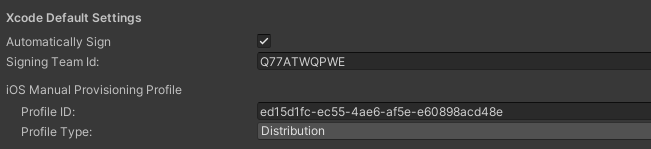
- Unity で Xcode Auto Signing / Provisioning Profile 設定
- #1. Player Settings - Other Settings -> Identification を設定
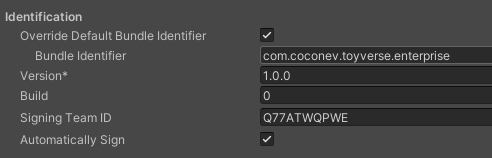
- #2. Preferences - External Tools -> Xcode Default Settings を設定 (macOS は settings 経由)
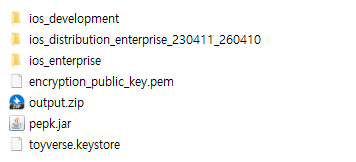
- Apple Developer の Certificates / Provisioning Profile はプロジェクト管理に入れておくと便利 (Android keystore も含めて)
- #1. Player Settings - Other Settings -> Identification を設定
この記事は著者の CC BY 4.0 ライセンスの下で提供されています。