
Unity Addressables Optimization Guide

- Unity Addressables Optimization Guide
- Unity Profiler Optimization
- Unity Mobile Optimization Practical Guide - From Profiler to Memory Architecture
- Unity & iOS Memory Architecture

Addressables Optimization
Duplicate dependency issue in Addressables
- You can check duplicate dependencies through the Addressables report. Personally, I usually handle this through Analyze.
What is a duplicate dependency?
- Addressables can register assets regardless of where they are in the
Assetsfolder, because they are handled through memory-address-based references. - But with that convenience comes one key caution: duplicate dependencies.
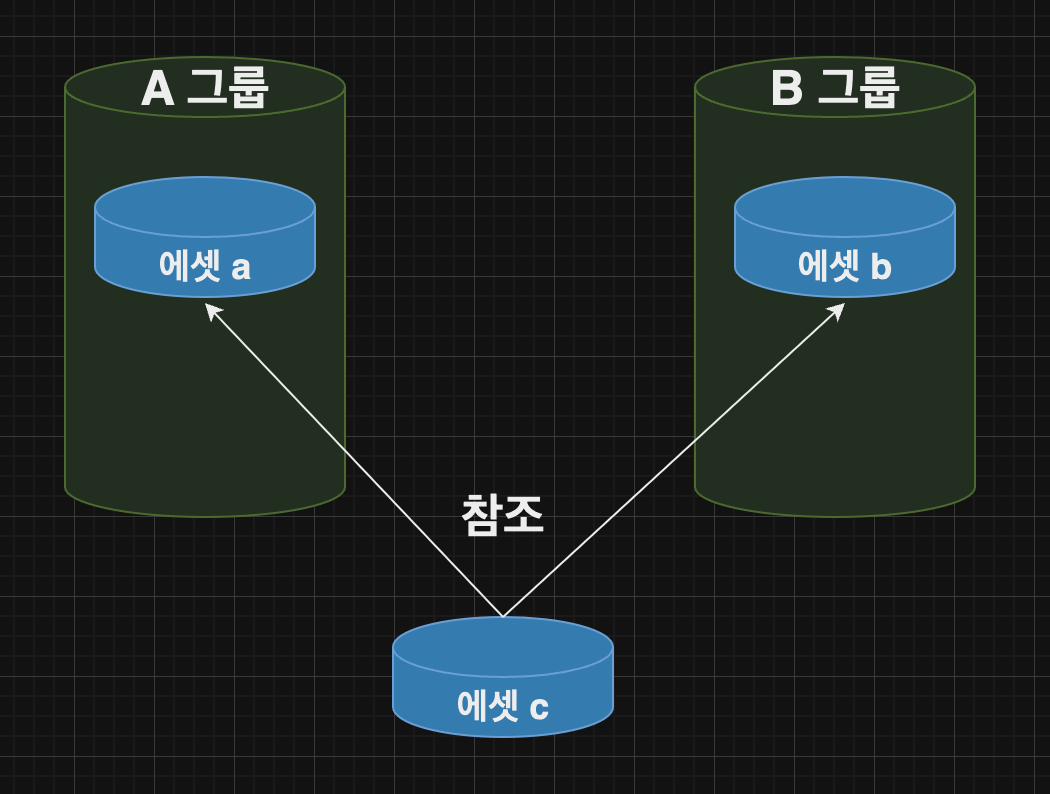
- Assume there are Asset Group A and B.
- Suppose asset
aandbin each group both reference assetc.
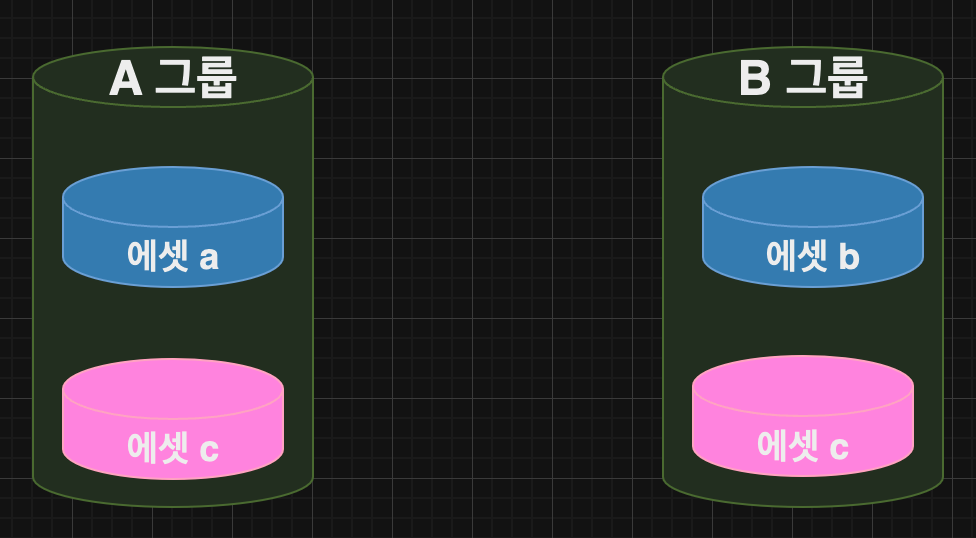
- Then generated AssetBundle A and B each include asset
c. - That means two copies of asset
care loaded into memory.
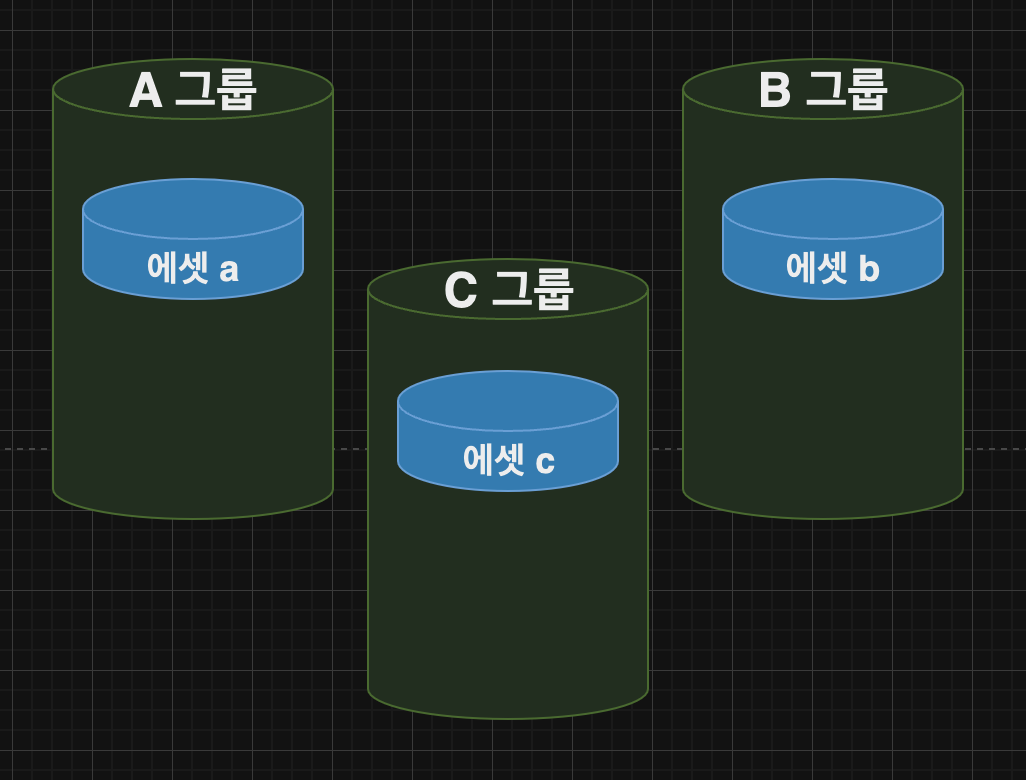
- The solution is simple.
- Create Asset Group C and move asset
cthere. - Then AssetBundle A and B both reference AssetBundle C, so asset
cis not loaded twice.
Summary
- Shaders are a typical case of this issue because many materials reference the same shader.
- So create a dedicated shader group (this also connects to shader variant optimization below).
- Even if you do not assign an Address directly, for assets referenced by multiple groups, make an explicit dependency-only group.
- You can also reduce catalog size by excluding addresses from the catalog.
Uncheck
Include Addresses in Catalog.
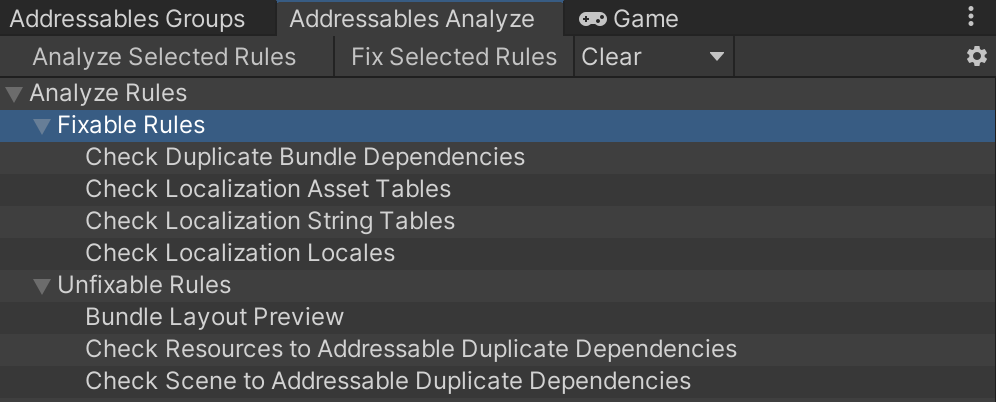
- Addressables has an
Analyzetool. InFixable Rules, runAnalyze Selected Rulesfrom the top toolbar. - It automatically creates a
Duplicate Isolationgroup and moves duplicate dependency assets into it.
Addressables optimization tips
- If you are not using
AssetReference, you can remove GUIDs from the catalog.Uncheck
Include GUIDs in Catalog.
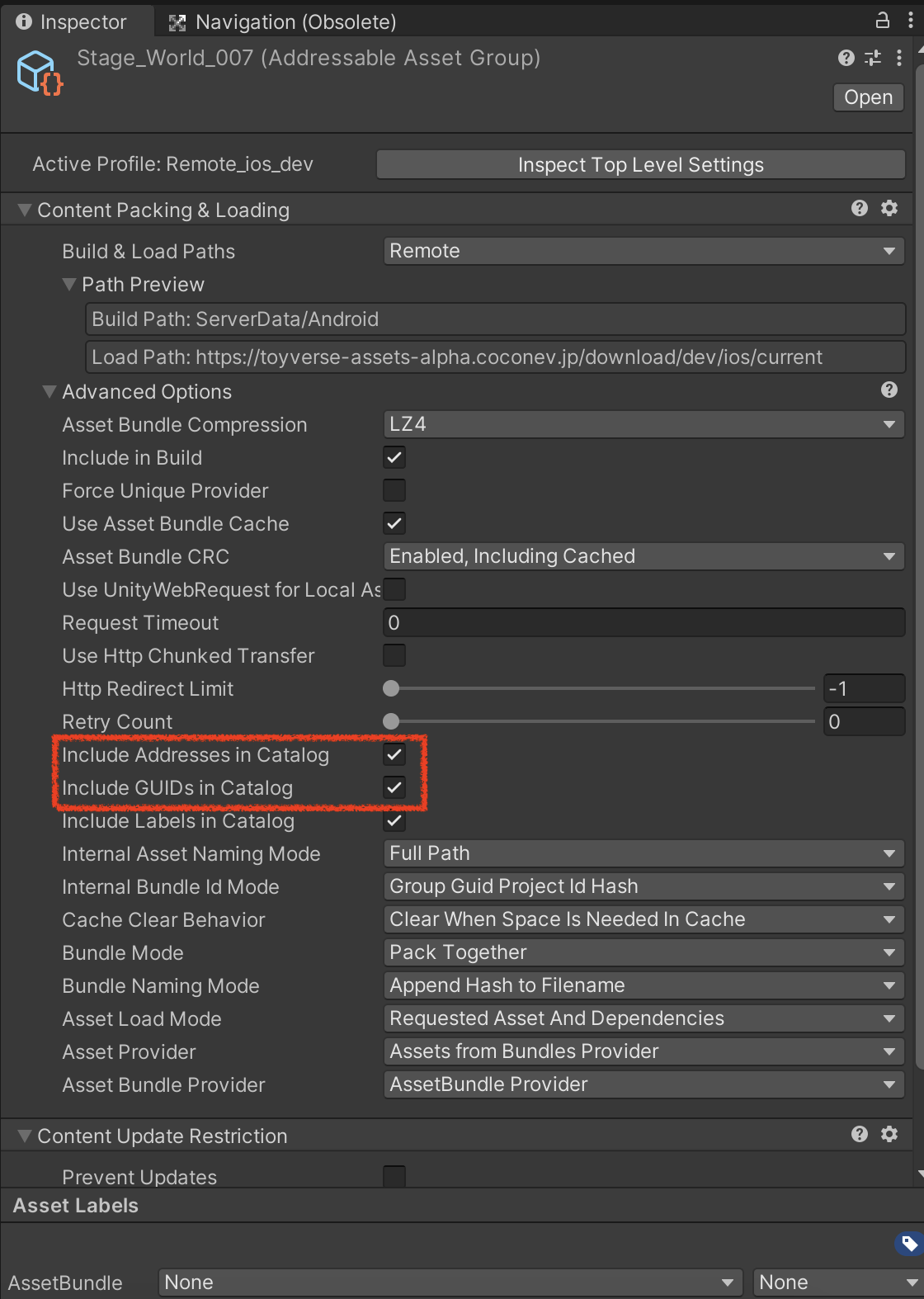
- Use binary catalogs instead of JSON catalogs. There are ways to inspect and tamper with update contents from catalog JSON, so binary can add a first security layer.
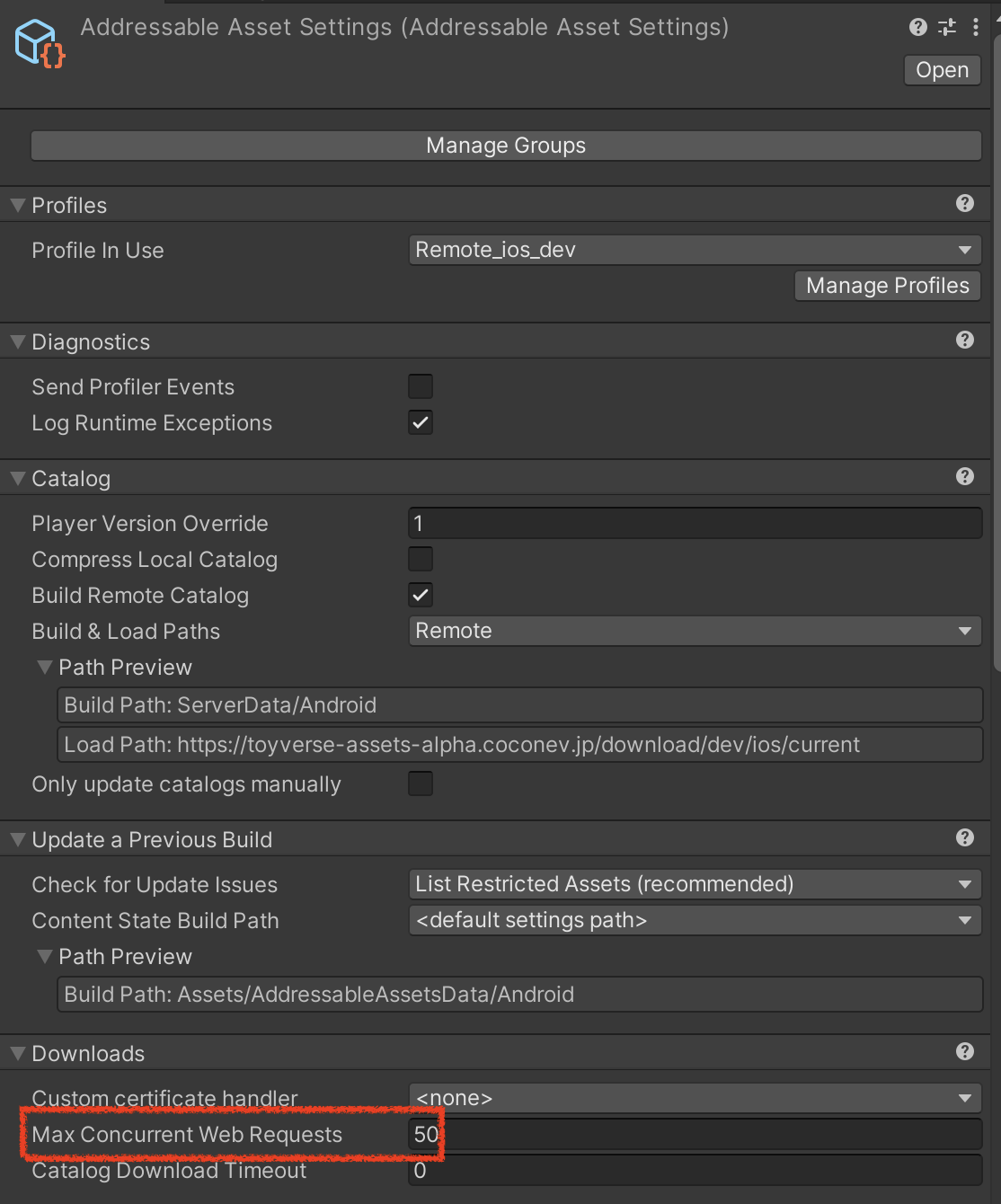
- On mobile, the number of concurrent web requests is limited.
Max Concurrent Web Requestdefaults to 500; reduce it to a reasonable lower value.
Shader variant optimization
Project Auditor
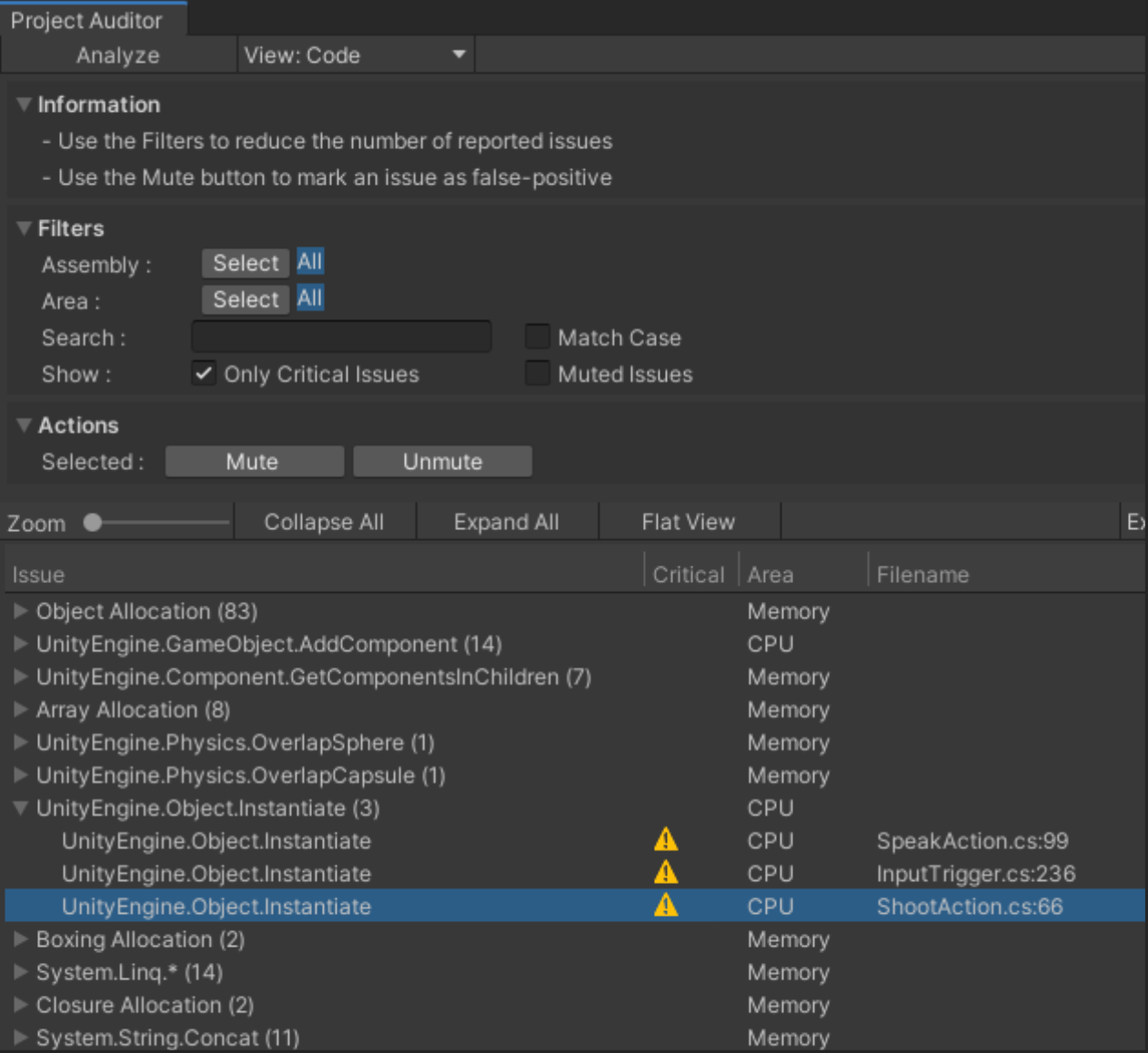
- Project Auditor Github
- Static analysis tool
Analyzes Unity assets, project settings, and scripts.
Useful for reducing shader variants.
What is a shader variant?
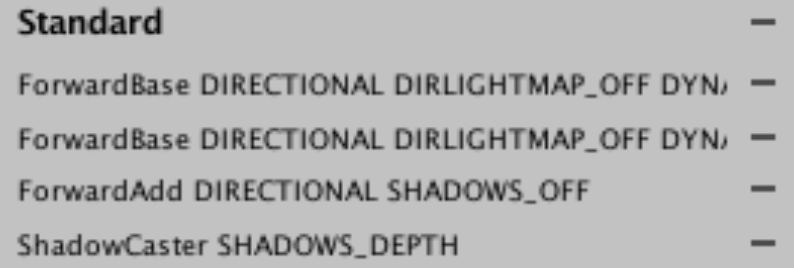
- A derived shader version generated by keyword combinations and similar conditions.
If you use multiple keywords such as OpenGL and Vulkan, multiplied shader variants are produced during build.
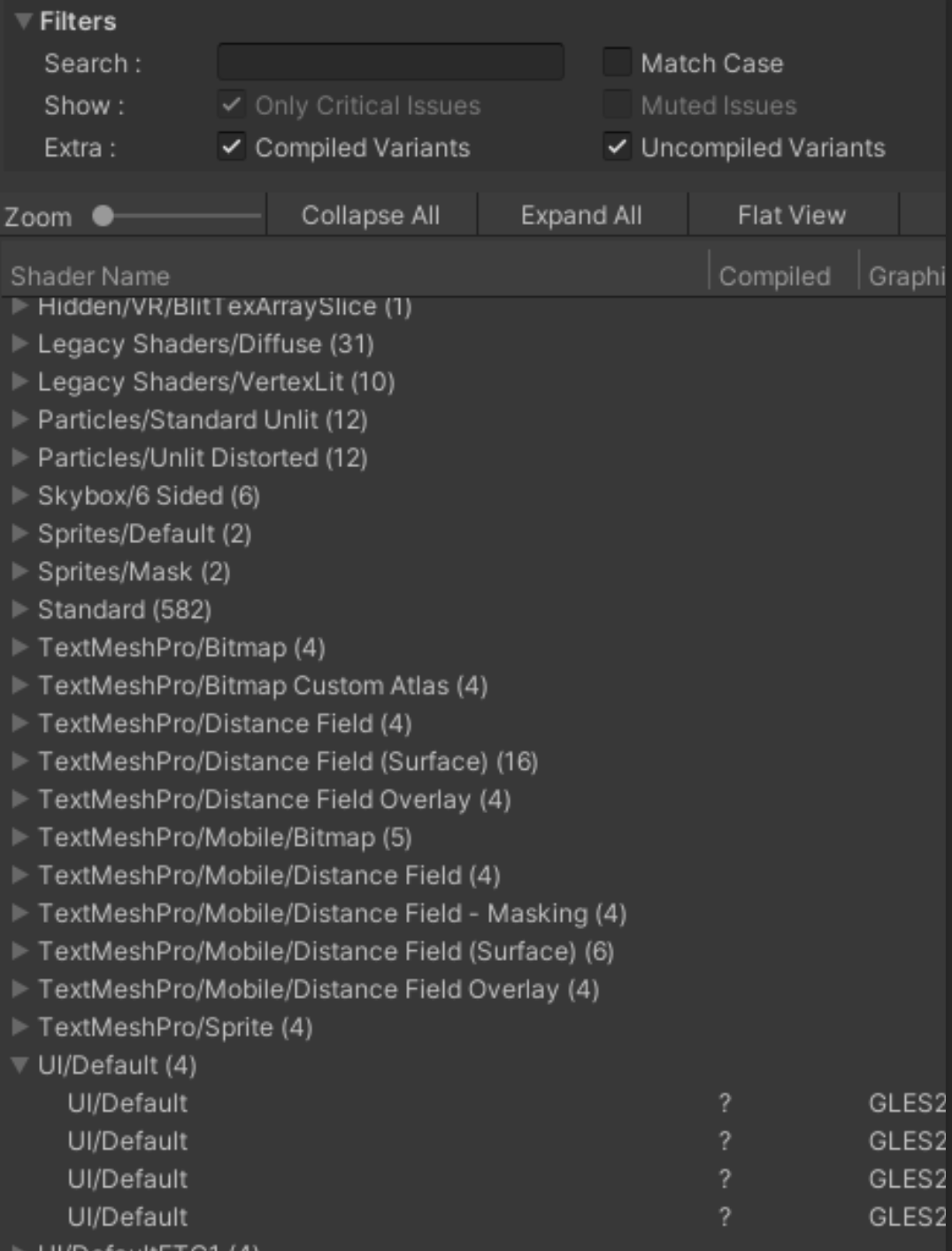
- Also, if variant count grows too large:
- SetPass Call increases
- Memory usage can double per keyword
Cleaning up shader variants
- Do not use unnecessary shader keywords. Merge shaders/variants that serve similar roles.
- Most common case:
If you do not separate a shader group in Addressables, duplicated shader variants are included in each AssetBundle, causing duplicate dependencies and extra memory load.
Create a dedicated asset group for shaders.
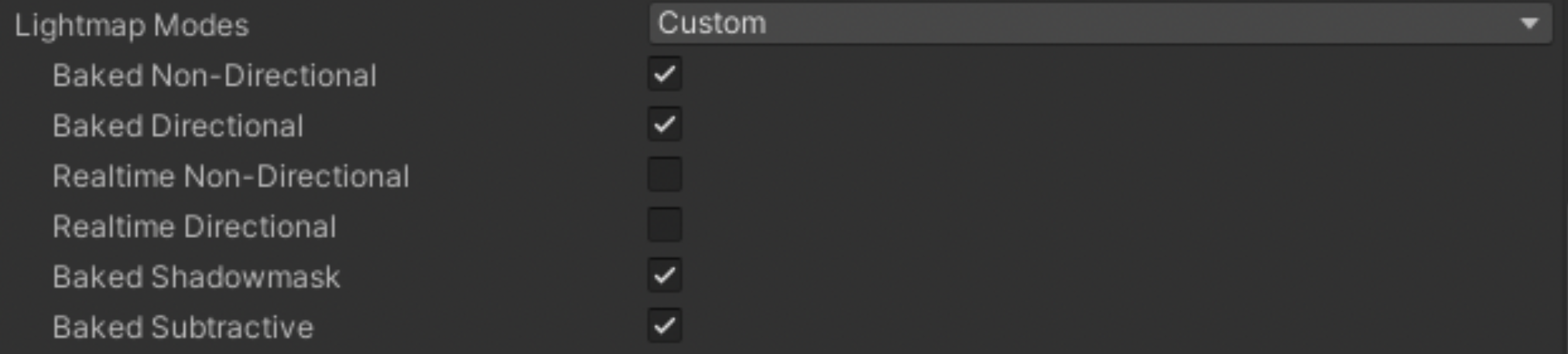
- In Lighting settings, disable unused lightmap modes so related shader keywords are explicitly removed.
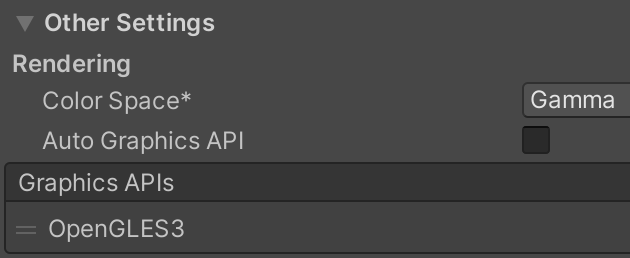
- Disable unused Graphics APIs. Separate shader variants are generated per graphics API.
Personally, on Android mobile, OpenGL ES3 has felt more stable than Vulkan (for example, particle flicker issues).
On Apple platforms, the graphics API is Metal.
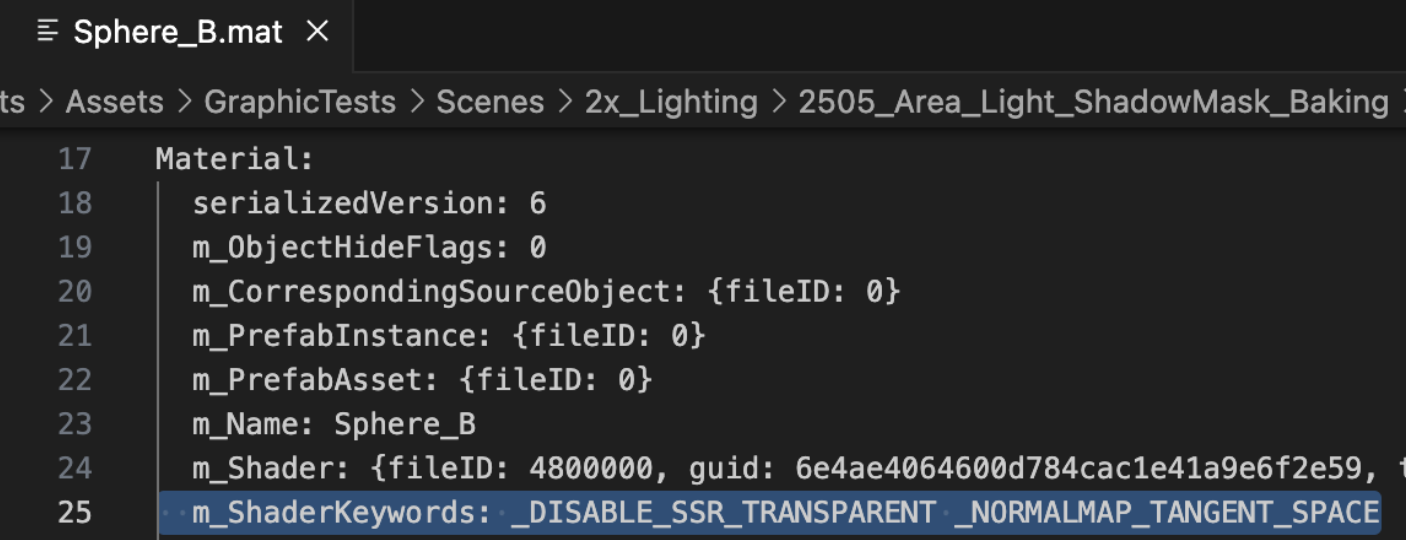
- Be careful with materials not included in build
Keywords declared with
shader_featureare stripped if no included material uses them.
Build-time keyword stripping is based on project materials, but materials excluded from build can still affect which keywords remain.
- Enable strip settings in URP
Debug keywords
Unused post-process variant keywords
Unused URP feature variants
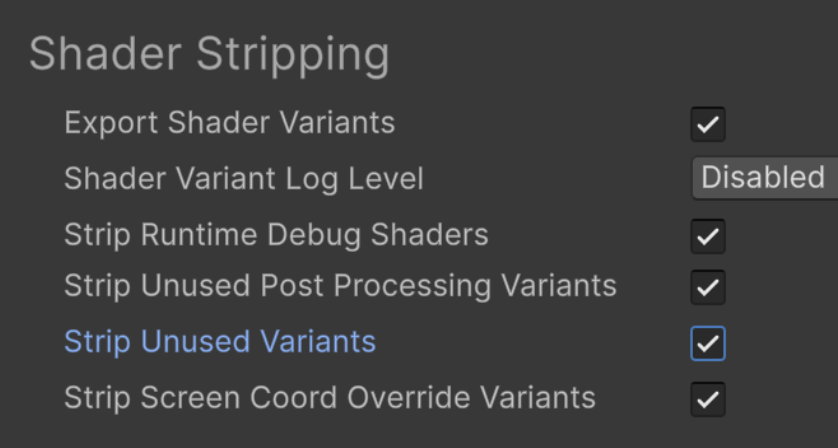
Cleanup by elimination with Project Auditor
- First, clear previous build cache!
- Collect all variants included in build
- Collect variants actually used during gameplay from logs
- Remove unused variants
Remove keywords directly in shader code
Disable options in materials
Filter withIPreprocessShaders
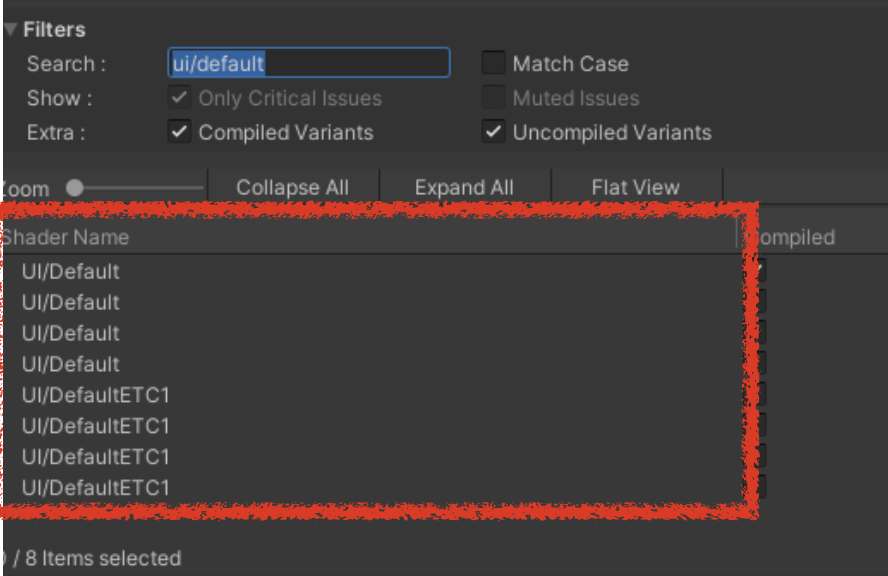
- Enable shader compilation logs in Project Settings
Project Settings > Graphics > Log Shader Compilation - Enable
Development Build - Run both Addressables build and player build
When running Addressables build, clear previous Addressables build cache first
- In Project Auditor’s Shader Variant window, shaders included in the build are shown
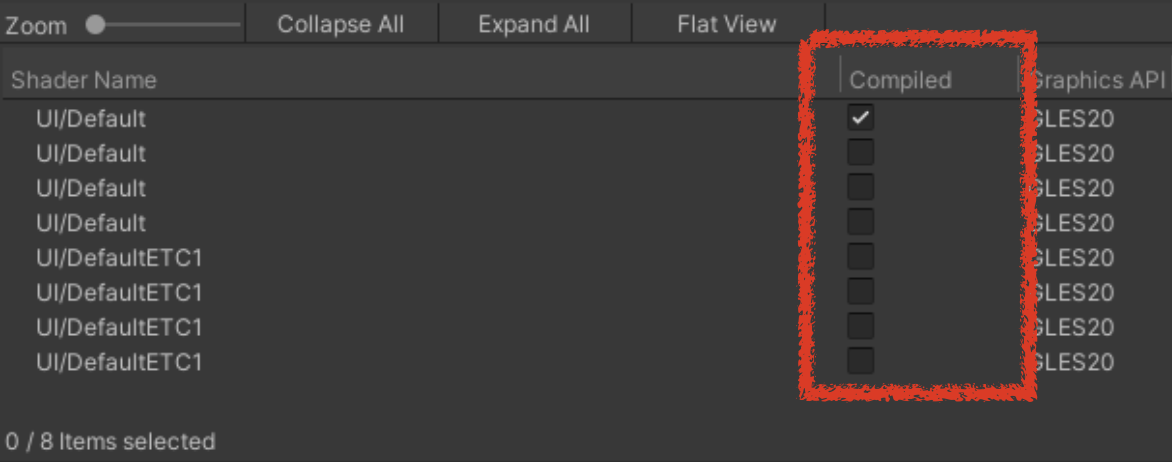
- Play the game and traverse the full content
- Names of loaded and GPU-compiled shader variants are written to logs
- Drag and drop that log into Project Auditor window
Variants compiled by GPU (= actually used) are marked as
Compiled - Now you can clean up unused variants
Side note: CRC check when implementing an Addressables patch system

- In Addressables group settings, there is an option to enable/disable CRC.
- CRC check is an integrity check that verifies whether AssetBundles were tampered with.
- I implemented a patch system by iterating all
ResourceLocators, not by downloading an entire label set. - During this process, I saw abnormal behavior in resource download loading progress. (Progress value was built by summing key values from each resource locator.)
- For example, when downloading 200MB, at 98%-99%, downloading the last 1%-2% took longer than downloading the first ~90%.
- I was advised by instructor Je-min Lee that this may be due to CRC integrity checks near the end of loading, so disabling CRC is worth testing.
- Or if it is the same with CRC off, web requests may be entering contention; in that case, lower
Max Web Requestvalue.