
Unity Netcode - Networking Components Guide
- Unity Netcode - Networking Components Guide
- Unity Netcode - Synchronization Deep Dive: RPCs vs. NetworkVariables
- Unity Netcode - Deep Dive into Authoritative Modes: Server vs. Client

What is Unity Netcode?
It refers to Unity Netcode for GameObjects (there is also Netcode for ECS), which is a networking library provided by Unity.
It offers a high-level API, allowing easy implementation of game object state synchronization, Remote Procedure Calls (RPCs), and connection management.
At a low level, it uses Unity Transport, a network transport library, to handle data packet transmission, retransmission, and ordering guarantees.
For example, when you call a
ServerRpcin aNetworkBehaviour, Unity Transport converts this call into a packet and sends it to the server.
Unity Netcode Components
NetworkManager
NetworkManagermanages the lifecycle of network sessions and establishes connections between the server and clients.Connections are typically made via Host-Client, Relay Server, or Dedicated Server.
- How it works
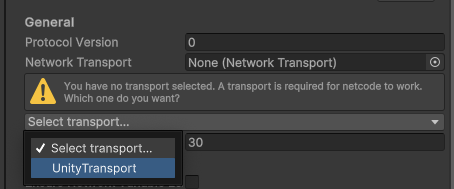
- Set the Network Transport to Unity Transport.
Assign a so-called “Player Shell” to the Player Prefab. (This refers to a character dedicated to network communication, with components like
NetworkObjectandNetworkTransformattached.)A Scriptable Object is assigned to Network Prefab Lists. If you assign the prefabs you want to spawn to this list,
SpawnandDespawnbecome possible. (It also handles internal GC.)
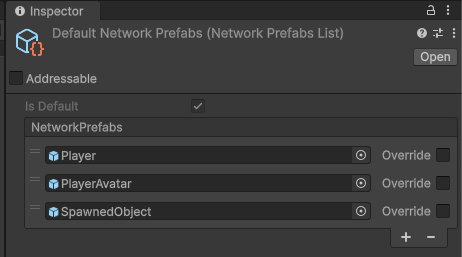
- NetworkManager Component
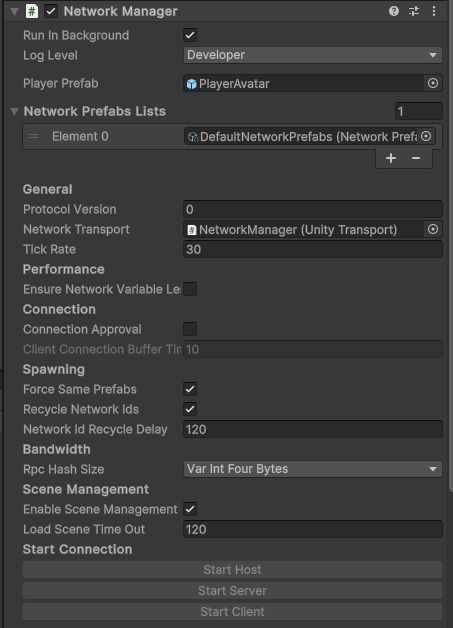
- Just add the component and place it in the scene…
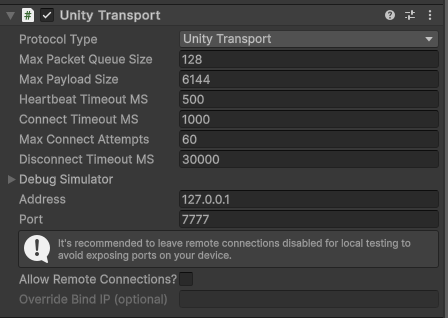
- There is also a companion component called Unity Transport. You can modify the IP address and port number via script.
1
2
3
4
5
6
7
8
9
10
11
12
13
14
15
16
17
18
19
20
ut = NetworkManager.Singleton.GetComponent<UnityTransport>();

...

ut.SetConnectionData(ipAddStr, portNumber);

...

// Since the server uses an EC2 instance and runs as a dedicated server in a virtual environment,
// it has no graphics device type.
// Therefore, the code to distinguish between server and client execution via NetworkManager is as follows:
if (SystemInfo.graphicsDeviceType == GraphicsDeviceType.Null)
{
    Debug.Log("ServerBuild");
    NetworkManager.Singleton.StartServer();
}
else
{
    NetworkManager.Singleton.StartClient();
}
NetworkObject
NetworkObjectis the core of all game objects synchronized and managed over the network.It must contain one
NetworkObjectcomponent and at least oneNetworkBehaviourcomponent. Only then can the game object react to and interact with network code.
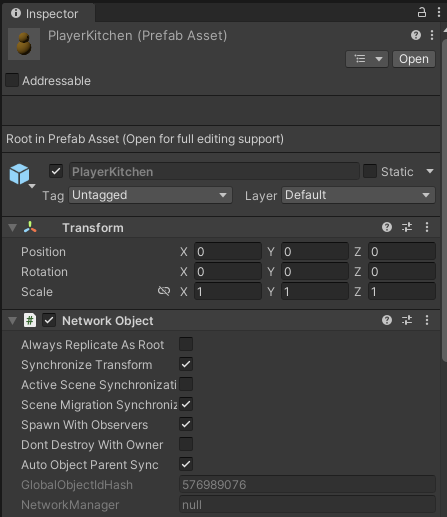
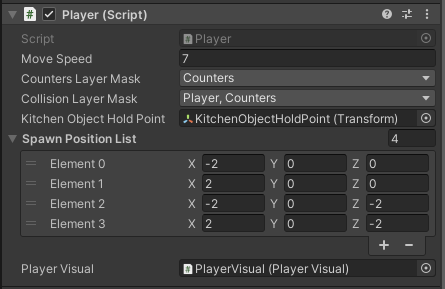
A PlayerKitchen prefab with a NetworkObject component and a Player component (inheriting from NetworkBehaviour) attached.
1
2
3
4
5
6
7
8
9
10
11
12
13
public class Player : NetworkBehaviour, IKitchenObjectParent
{
    public static event EventHandler OnAnyPlayerSpawned;
    public static event EventHandler OnAnyPickedSomething;

    public static void ResetStaticData()
    {
        OnAnyPlayerSpawned = null;
    }

    ...

}
Also, to replicate Netcode-aware properties (like
NetworkVariablefor synchronization) or send/receive RPCs, the game object must haveNetworkObjectandNetworkBehaviourattached.Components like
NetworkTransformandNetworkAnimatoralso require thisNetworkObject.
NetworkObject is instantiated and given a unique NetworkObjectId.
When the first client connects, it identifies the
NetworkObject.GlobalObjectIdHashvalue.After local instantiation, each
NetworkObjectis assigned aNetworkObjectIdused to link the object across the network.For example, if one peer says “Send this RPC to the object with NetworkObjectId 103,” everyone knows which object is meant.
Finally, the
NetworkObjectis created on the client when it is instantiated and assigned a uniqueNetworkObjectId.
Ownership
The server or a connected authorized client owns each
NetworkObject.By default, Netcode for GameObjects uses a Server-Authoritative approach, where only the server can spawn or destroy
NetworkObjects.However, permissions can be granted to clients to spawn or destroy them.
1
2
// The default NetworkObject.Spawn method assumes server-side ownership
GetComponent<NetworkObject>().Spawn();
1
2
// To spawn a NetworkObject with specific ownership, use:
GetComponent<NetworkObject>().SpawnWithOwnership(clientId);
1
2
// To change ownership, use the ChangeOwnership method
GetComponent<NetworkObject>().ChangeOwnership(clientId);
1
2
// To return ownership to the server, use the RemoveOwnership method
GetComponent<NetworkObject>().RemoveOwnership();
To check if the local client is the owner of a
NetworkObject, you can check theNetworkBehaviour.IsOwnerproperty.To check if the server owns the
NetworkObject, you can check theNetworkBehaviour.IsOwnedByServer/IsServerproperties.
1
2
3
4
5
6
7
8
9
10
11
12
13
14
15
16
17
18
19
20
21
22
23
// IsOwner and IsServer are available as properties when inheriting from NetworkBehaviour.

public class Player : NetworkBehaviour
{
    ...

    public override void OnNetworkSpawn()
    {
        if (IsOwner)
        {
            LocalInstance = this;
        }

        ...

        if (IsServer)
        {
            NetworkManager.Singleton.OnClientDisconnectCallback += NetworkManager_OnClientDisconnectCallback;
        }
    }

    ...
}
- If the server needs to retrieve the
PlayerObjectinstance of a specific client, you can use the following method:
1
NetworkManager.Singleton.ConnectedClients[clientId].PlayerObject;
NetworkBehaviour
NetworkBehaviouris an abstract class inheriting from Unity’sMonoBehaviour. It is a mandatory component alongsideNetworkObjectforNetworkVariablesynchronization or sending/receiving RPCs.
Spawning
When a
NetworkObjectis spawned,OnNetworkSpawnis called on each associatedNetworkBehaviour.All Netcode-related initialization should happen at this point.
1
2
3
4
5
6
7
public class Player : NetworkBehaviour
{
    public override void OnNetworkSpawn()
    {
        // Netcode initialization here
    }
}
- The table below shows when
NetworkBehaviour.OnNetworkSpawnis called.
| Dynamically Spawned | Placed in Scene |
|---|---|
| Awake | Awake |
| OnNetworkSpawn | Start |
| Start | OnNetworkSpawn |
Despawning
Each
NetworkBehaviourhas a virtualOnDestroymethod that can be overridden to handle cleanup when theNetworkBehaviouris destroyed.
1
2
3
4
5
6
7
public override void OnDestroy()
{
    // Clean up your NetworkBehaviour

    // Always invoke the base
    base.OnDestroy();
}
NetworkBehaviour Synchronization
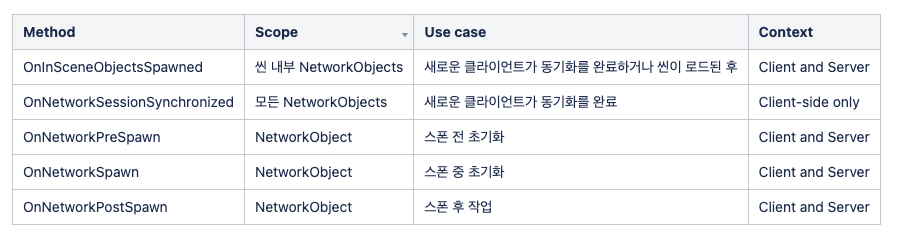
You can synchronize settings for before, during, and after spawning a
NetworkObjectviaNetworkBehaviour.
NetworkTransform
Overview of NetworkTransform Synchronization
a. Decide which Transform Axes to synchronize.
b. Serialize the values. (Similar to
INetworkSerializeofNetworkVariable)c. Send the serialized values as a message to all connected clients.
d. Process the message and deserialize the values.
e. Apply the deserialized values to the corresponding Transform Axes.
Component Configuration
- Typically attached to the same hierarchy level as
NetworkObjectandNetworkBehaviourcomponents. - Synchronization of
NetworkTransformis divided based on the Authoritative Mode.
- 1. NetworkTransform : Server Authoritative Mode (Default)
- The server calculates movement logic and synchronizes position information to connected clients.
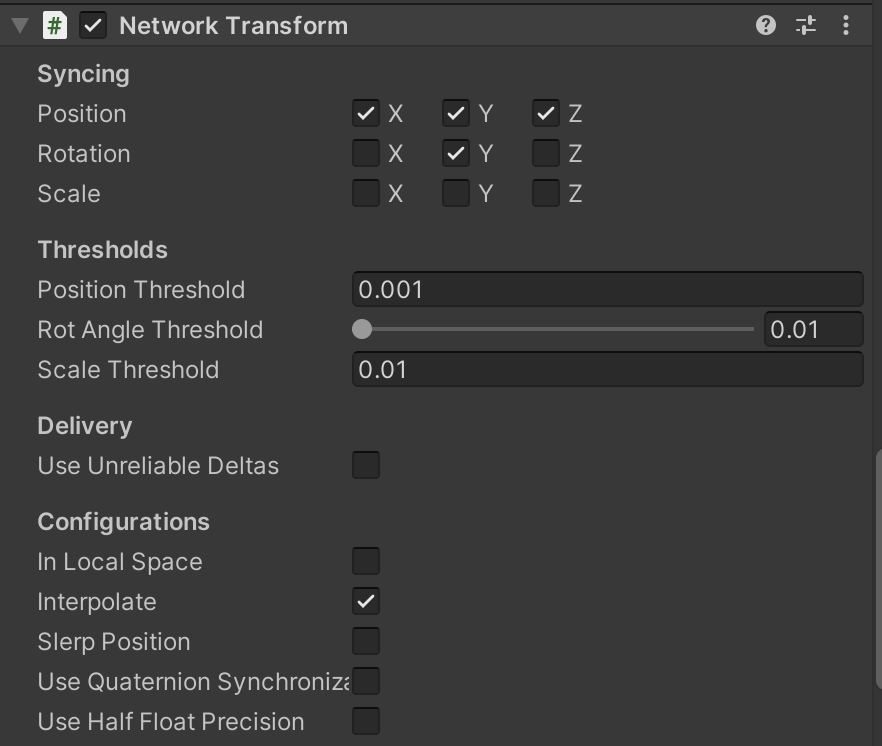
- 2. OwnerNetworkTransform : Owner/Client Authoritative Mode
- Allows use of Interpolation.
- Client A calculates movement logic and sends position info to the server. The server only acts as a relay to synchronize A’s position to other clients.
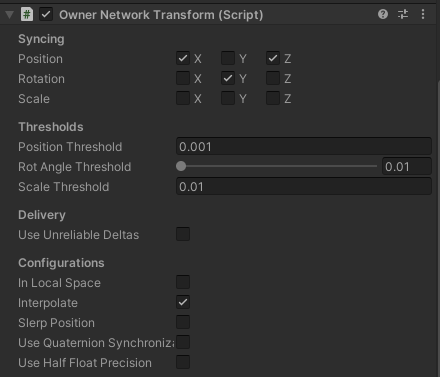
- Deciding which authority mode to use requires careful consideration. Check this document for more details on Authority Modes.
- Next, let’s look at the properties inside the
NetworkTransforminspector.
Syncing
Some
NetworkTransformproperties are automatically synchronized from the authoritative instance to all non-authoritative instances.Important: When a synchronized property changes, the
NetworkTransformeffectively “Teleports” (all values are synced, and interpolation is reset).
- Optimization of Synchronization
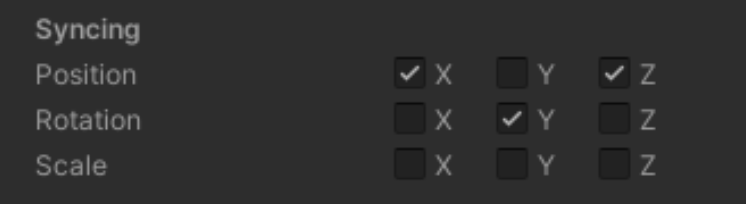
As shown above, in most cases, not all Transform values of a GameObject need to be synchronized over the network.
For example, if the GameObject’s scale doesn’t change, you can disable synchronization for Scale.
Disabling synchronization saves CPU costs and network bandwidth → removes additional processing overhead per instance.
Thresholds
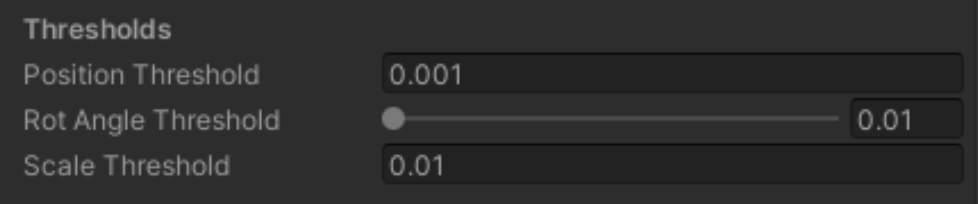
You can set minimum thresholds. This reduces synchronization update frequency by syncing only changes equal to or greater than the threshold.
If interpolation is enabled on
NetworkTransform, increasing the Position Threshold can lower the update frequency without affecting the “smoothness” of the object’s movement.Lowering the frequency reduces bandwidth cost per instance.
Lowering the threshold increases frequency → bandwidth cost per instance increases.
Delivery
Poor network conditions can cause packet delay or loss → mainly causes “stuttering,” creating visual gaps in movement.
However, Netcode’s
NetworkTransformcan easily recover usingBufferedLinearInterpolatoreven if Delta (Position, Rotation, Scale) states are lost.It calculates the full interpolation path without waiting for the next state update (which might already be lost).
For example, with a TickRate of 30, even if 5-10% of updates are lost in a second, it can derive an interpolation path relatively similar to a perfectly delivered path.

The Use Unreliable Deltas option means enabling unreliable delta state updates.
Packet Loss Recovery: Sending updates in an unreliable order means that even if some packets are lost, only a small part of the total state update path is lost, and the rest remains normal.
Reduced Latency: Unreliable transmission generally has lower latency than reliable transmission. Reliable transmission must attempt retransmission upon packet loss, which can increase latency.
However, bandwidth consumption may increase due to frequent packet transmission.
Conclusion: Enabling
UseUnreliableDeltascan mitigate packet loss and latency issues but may consume extra bandwidth. When using this option, it is important to choose optimal settings considering the network environment and bandwidth usage. If bandwidth is an issue, disabling this option and verifying no visual defects exist is a valid strategy.
- Interpolation
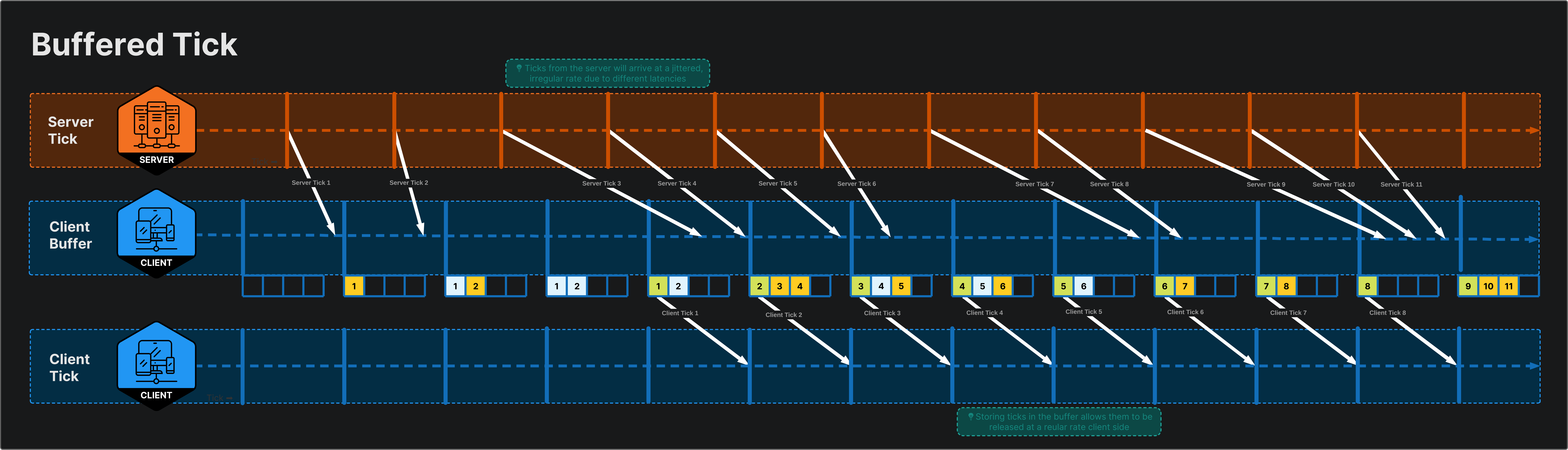
Interpolation is enabled by default. Applying interpolation can prevent “Jittering” when latency is high.
There are various options in Configuration, but it is recommended to disable options other than Interpolation (e.g., using Euler → Quaternion conversion might increase bandwidth due to Quaternion compression).
Refer to the official documentation for detailed explanations.
Authority Mode
Server Authoritative Mode
By default,
NetworkTransformoperates in Server Authoritative Mode.This means changes to Transform axes are detected on the server side and pushed to connected clients.
It also means any changes to Transform values on the client side will be overwritten by the authoritative state (server side).
This can cause issues where position updates are not immediate on the client side, making controls feel unresponsive.
Owner Authoritative Mode → ClientNetworkTransform
To solve the above, you need to update to Owner Authoritative Mode.
There are cases where immediate position updates are required on the client side for a specific
NetworkObject(typically the player).When the
NetworkTransformcomponent initializes, owner authority is determined by theNetworkTransform.OnIsServerAuthoritativemethod.Therefore, to enable Owner Authoritative Mode, simply override this method to return false.
1
2
3
4
5
6
7
public class OwnerNetworkTransform : NetworkTransform
{
    protected override bool OnIsServerAuthoritative()
    {
        return false;
    }
}
- After writing this script, replace the
NetworkTransformcomponent on the player prefab with theOwnerNetworkTransformcomponent.
NetworkRigidbody
Netcode for GameObjects basically provides Server-Authoritative physics for multiplayer physics simulation management.
In this case, physics simulation runs only on the server.
To apply network physics,
NetworkRigidbodymust be attached along withRigidbodyon a prefab with aNetworkObjectcomponent.For more on authority modes, refer to the Server Authoritative Mode document.
When Authority Mode is set to Client
Attaching
NetworkRigidbodycausesisKinematicof the connected clients’ Rigidbodies to be enabled on the Server.On the client side,
isKinematicis disabled. Thus, physics-based movement (likeRigidbody.velocity) is possible on the client, and theClientNetworkTransformsends the client’s transform info to the server to sync with other clients. (This poses a high security risk as authority is granted to the client.)However, while physics-based movement was possible, since
isKinematicwas enabled for clients on the server, basic Rigidbody physics interactions between server and clients (needed for party games) were impossible. (Since physics simulation is only possible on the server.)In other words, Rigidbody physics simulation on the local client (self) was possible, but physical simulation against other clients or the server (
NetworkRigidbody) was not. (Physical interference with other clients was impossible.)
Client Authoritative Mode has the advantage of immediate response since input → movement calculation is processed on the client, but I had to give it up because Rigidbody physics simulation between self and others was impossible.
Does this mean physics simulation is impossible? Not necessarily. It is possible if you implement it by manually adding force or using events on the server, but “wobble” is likely to occur.
- Therefore, it is recommended to choose the authority mode appropriate for the game type of your project.
Client Authoritative Mode Physics Processing Video
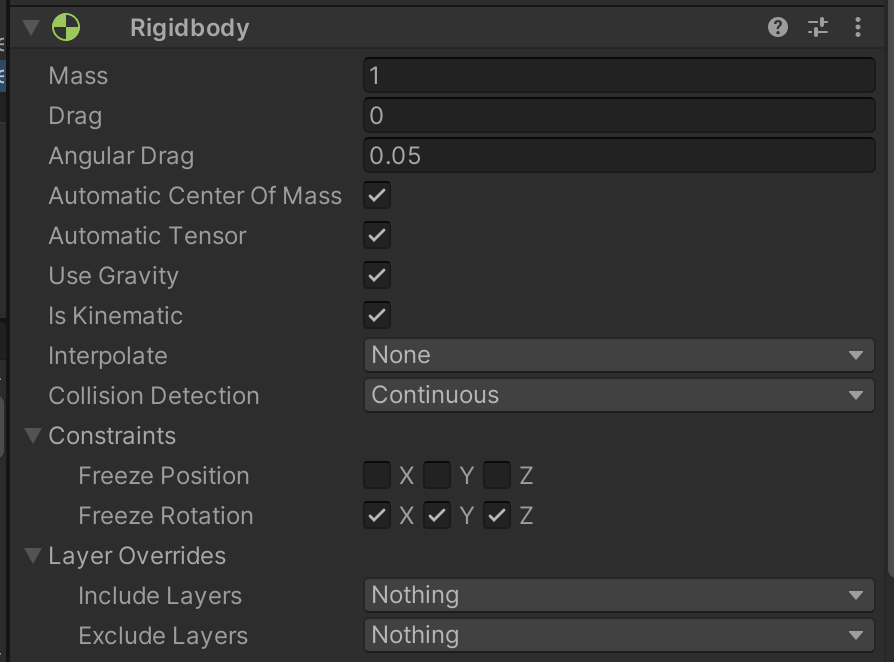
Client Rigidbody’s isKinematic enabled on the Server
Attempts to Disable isKinematic
1
2
3
4
5
6
7
8
9
10
11
12
13
14
15
16
17
18
19
20
21
22
23
24
25
26
27
28
29
30
31
32
33
34
35
public class CustomNetworkRigidbody : NetworkRigidbody
{
    private Rigidbody m_Rigidbody;

    private void Start()
    {
        m_Rigidbody = GetComponent<Rigidbody>();
    }

    public override void OnNetworkSpawn()
    {
        base.OnNetworkSpawn();

        if (IsServer)
        {
            m_Rigidbody.isKinematic = false;
        }
    }
    public override void OnGainedOwnership()
    {
        base.OnGainedOwnership();

        if (transform.parent != null)
        {
            var parentNetworkObject = transform.parent.GetComponent<NetworkObject>();

            if (parentNetworkObject != null)
            {
                m_Rigidbody.isKinematic = false;
            }
        }

        m_Rigidbody.isKinematic = false;
    }
}
- Attempted to disable in
OnNetworkSpawn→ Failed - Attempted to disable in
OnGainedOwnership→ Failed
- I learned that disabling
isKinematicis fundamentally impossible because physics simulation is delegated to the server.
When Authority Mode is set to Server
Server Authoritative Mode Physics Processing Video
NetworkAnimator
- If
NetworkTransformsynchronizes position,NetworkAnimatorsynchronizes animation states across the network. In a multiplayer game, other players’ characters must run, attack, or get hit naturally, requiring precise synchronization of Animator parameters and state transitions.
Basic Setup
Attaching a NetworkAnimator component alongside an Animator to a GameObject with a
NetworkObjectenables basic animation synchronization.NetworkAnimatorautomatically monitors parameters defined in the Animator Controller and propagates changes over the network.
What NetworkAnimator Automatically Synchronizes:
- Animator Parameters: Changes in Float, Int, Bool values.
- Animation State Transitions: Current playing state and transition info.
- Trigger Parameters: When
SetTriggeris called (Must be called viaNetworkAnimator).
Trigger Parameter Caution
Unlike other parameters (Float, Int, Bool), a Trigger is a one-shot event. It automatically resets after being triggered.
A common mistake when using Triggers in a network environment is calling
Animator.SetTrigger()directly. This only plays locally and does not sync to other clients. You must use theNetworkAnimator.SetTrigger()method.
1
2
3
4
5
6
7
// Correct - Call Trigger via NetworkAnimator
NetworkAnimator networkAnimator = GetComponent<NetworkAnimator>();
networkAnimator.SetTrigger("Attack");

// Incorrect - Only runs locally, no network sync
Animator animator = GetComponent<Animator>();
animator.SetTrigger("Attack"); // No Sync!
Authority Mode
Like
NetworkTransform,NetworkAnimatoroperates in Server Authoritative Mode by default.In Server Authoritative Mode, if the server changes Animator parameters, they sync to all connected clients. Conversely, if a client changes parameters directly, they are overwritten by the server’s state.
To switch to Client Authoritative Mode, override
OnIsServerAuthoritativejust like withNetworkTransform.
1
2
3
4
5
6
7
public class OwnerNetworkAnimator : NetworkAnimator
{
    protected override bool OnIsServerAuthoritative()
    {
        return false;
    }
}
- Remove the existing
NetworkAnimatorcomponent and attach the aboveOwnerNetworkAnimatorcomponent to sync animations in Owner Authoritative Mode.
Practical Recommendations
| Item | Server Auth | Client Auth |
|---|---|---|
| Sync Source | Server changes params → Propagates to clients | Owner client changes → Server relays → Propagates |
| Responsiveness | Delayed by RTT | Immediate feedback possible |
| Recommended For | NPCs, security-critical actions | Player character movement/attack animations |
Generally, it is recommended to use the same Authority Mode as NetworkTransform. If movement is client-authoritative but animation is server-authoritative, the character might move on the client, but the run animation plays later by RTT, causing awkwardness.
Conversely, NPCs or server-controlled objects can achieve natural synchronization by setting both
NetworkTransformandNetworkAnimatorto Server Authoritative Mode.
Alternative: Not Using NetworkAnimator
In some cases, instead of
NetworkAnimator, a pattern of syncing only state enum values viaNetworkVariableand controlling the local Animator on each client is used. This saves bandwidth and allows finer control over animation blending or transition timing on the client. However, it comes with the trade-off of increased code complexity as you manage sync logic yourself.
1
2
3
4
5
6
7
8
9
10
11
12
// Example: Syncing only state values via NetworkVariable
public enum PlayerAnimState { Idle, Running, Attacking, Hit }

public NetworkVariable<PlayerAnimState> AnimState = new();

private void Update()
{
    // Set Animator parameters locally
    animator.SetBool("IsRunning", AnimState.Value == PlayerAnimState.Running);
    animator.SetBool("IsAttacking", AnimState.Value == PlayerAnimState.Attacking);
    animator.SetBool("IsHit", AnimState.Value == PlayerAnimState.Hit);
}
Limitations and Cautions of NetworkAnimator
NetworkAnimatormonitors all parameter changes every tick, so bandwidth consumption increases with the number of parameters. Keep this in mind when using complex Animator Controllers.Animation Events are not synchronized via
NetworkAnimator. Logic based on animation events (footsteps, effect timing) must be handled separately via RPCs orNetworkVariables.Layer Weight changes are synced, but dynamically adding/removing layers in the Animator Controller at runtime is not supported.
Summary:
NetworkAnimatoris convenient for simple animation sync, but for complex systems,NetworkVariable-based state sync patterns might be more flexible and efficient. Choose the appropriate method based on project complexity and bandwidth requirements.