
Unity Build Automation - Build Pipeline & Addressable
Unity Build Automation - Build Pipeline & Addressable
Build Series (2 / 7)
- Unity Build Automation - fastlane
- Unity Build Automation - Build Pipeline & Addressable
- Unity Addressable Build Error Fix - Animator Not Running
- Unity Build Automation - Jenkins
- Unity iOS ~ Xcode Build Pipeline Guide
- Unity iOS - Xcode Code Signing Guide (Certificates & Provisioning Profile)
- Jenkins Build Pipeline - Plugin List

Table of Contents
Introduction
- This means building Unity projects in batchmode through CI/CD tools (Jenkins, fastlane), running Unity in background.
- In FastFile from the previous fastlane post, this is typically done by static methods specified in
execute_methodof the unity plugin. - If you need to parse command-line arguments separately in build scripts, fastlane can be limiting; Jenkins shell execution may be easier.
Build script structure
- Put
BuildScript.csunderAssets/Editorin Unity project. - Class and execute methods used for Unity Build Pipeline must be
static.
1
2
3
4
5
6
7
public static class ProjectBuilder
{
    public static void BuildAndroid()
    {

    }
}
1. AOS build
- You must distinguish
.apkvs.aab: development often.apk, internal/public/release on Google Play should be.aab. - Create/store keystore carefully. Missing/corrupt keystore can break Unity build or cause Google Play Console signing issues.
keystore reference: »here«
- It’s recommended to keep generated keystore inside project and track with SVN (path setting consistency).
Full aos execute method code
- Create
BuildPlayerOptions, setPlayerSettingsandEditorUserBuildSettings, then callBuildPipeline.BuildPlayer. - The part reading arguments via
System.Environment.GetCommandLineArgs()is for values passed from Jenkins shell scripts. - But if run from fastlane directly, logs/behavior may be unreliable; in that case run batchmode from Jenkins shell.
1
2
3
4
5
6
7
8
9
10
11
12
13
14
15
16
17
18
19
20
21
22
23
24
25
26
27
28
29
30
31
32
33
34
35
36
37
38
39
40
41
42
43
44
45
46
47
48
49
50
51
52
53
54
55
56
57
58
59
public static void BuildAndroid()
{
   // Jenkins arguments. Added for build_num assignment.
   string[] args = System.Environment.GetCommandLineArgs();
   int buildNum = 0;
   foreach (string a in args)
   {
      if (a.StartsWith("build_num"))
      {
         var arr = a.Split(":");
         if (arr.Length == 2)
         {
            int.TryParse(arr[1], out buildNum);
         }
      }
   }

   Debug.Log("hhh args : " + string.Join(",", args));
   Debug.Log("Build Started hhh");

   // BuildPlayerOptions configuration
   BuildPlayerOptions buildPlayerOptions = new BuildPlayerOptions();
   buildPlayerOptions.scenes = FindEnabledEditorScenes();
   buildPlayerOptions.locationPathName = "/Users/YOUR_USERNAME/Build/toyverse_apk/toyverse.aab";
   buildPlayerOptions.target = BuildTarget.Android;
   EditorUserBuildSettings.buildAppBundle = true;

   // PlayerSettings configuration
   PlayerSettings.Android.bundleVersionCode = buildNum;
   PlayerSettings.Android.useCustomKeystore = true;
   PlayerSettings.Android.keystoreName = "Keystore/toyverse.keystore";
   PlayerSettings.Android.keystorePass = "toyverse";
   PlayerSettings.Android.keyaliasName = "com.coconev.toyverse";
   PlayerSettings.Android.keyaliasPass = "toyverse";

   Debug.Log("Build Player Started hhh");
   Debug.Log("PlayerSettings hhh keystoreName : " + PlayerSettings.Android.keystoreName);
   Debug.Log("PlayerSettings hhh keyaliasName : " + PlayerSettings.Android.keyaliasName);
   Debug.Log("PlayerSettings hhh keystorePass : " + PlayerSettings.Android.keystorePass);
   Debug.Log("PlayerSettings hhh keyaliasPass : " + PlayerSettings.Android.keyaliasPass);

   var report = BuildPipeline.BuildPlayer(buildPlayerOptions)

   if (report.summary.result == UnityEditor.Build.Reporting.BuildResult.Succeeded) Debug.Log("Build Success");
   if (report.summary.result == UnityEditor.Build.Reporting.BuildResult.Failed) Debug.Log("Build Failed");
}

private static string[] FindEnabledEditorScenes()
{
   List<string> EditorScenes = new List<string>();

   foreach (EditorBuildSettingsScene scene in EditorBuildSettings.scenes)
   {
      if (!scene.enabled) continue;
      EditorScenes.Add(scene.path);
   }

   return EditorScenes.ToArray();
}
2. iOS build
- In short:
- Unity build -> outputs
xcworkspace(with cocoapods) andxcodeproj - Xcode build -> outputs
.ipa
- Unity build -> outputs
Unlike AOS, you effectively build twice.
- Because of this, iOS build requires post-process steps.
- Create PBR class implementing
IPostprocessBuildWithReport. - Use
PBXProject,ProjectCapabilityManager, etc. for required post-processing. - Enabling/disabling bitcode, generating/applying entitlements, frameworks, capability automation were major pain points.
Full ios execute method code
1
2
3
4
5
6
7
8
9
10
11
12
13
14
15
16
17
18
19
20
21
22
23
24
25
26
27
28
29
30
31
32
33
34
35
36
37
38
39
40
41
42
43
44
45
46
47
48
public static void BuildIOS()
{
   // same pattern as AOS up to here
   BuildPlayerOptions buildPlayerOptions = new BuildPlayerOptions();
   buildPlayerOptions.scenes = FindEnabledEditorScenes();
   buildPlayerOptions.locationPathName = "/Users/YOUR_USERNAME/Xcode";
   buildPlayerOptions.target = BuildTarget.iOS;

   var report = BuildPipeline.BuildPlayer(buildPlayerOptions);

   if (report.summary.result == UnityEditor.Build.Reporting.BuildResult.Succeeded) Debug.Log("Build Success");
   if (report.summary.result == UnityEditor.Build.Reporting.BuildResult.Failed) Debug.Log("Build Failed");


// post process after BuildPlayer
#if UNITY_IPHONE
   PBR pbr = new PBR();
   pbr.OnPostprocessBuild(report);
#endif
}

#if UNITY_IPHONE // required to avoid Android target compile errors
class PBR : IPostprocessBuildWithReport
{
   public void OnPostprocessBuild(BuildReport report)
   {
      if (report.summary.platform == BuildTarget.iOS)
      {
         Debug.Log("OnPostProceeBuild");
         string projectPath = report.summary.outputPath + "/Unity-iPhone.xcodeproj/project.pbxproj";
         var entitlementFilePath = "Entitlements.entitlements";
         var project = new PBXProject();

         project.ReadFromFile(projectPath);
         var manager = new ProjectCapabilityManager(projectPath, entitlementFilePath, null, project.GetUnityMainTargetGuid());
         manager.AddPushNotifications(true);
         manager.WriteToFile();

         var mainTargetGuid = project.GetUnityMainTargetGuid();
         project.SetBuildProperty(mainTargetGuid, "ENABLE_BITCODE", "NO");

         project.SetBuildProperty(mainTargetGuid, "CODE_SIGN_ENTITLEMENTS", entitlementFilePath);
         project.AddFrameworkToProject(mainTargetGuid, "UserNotifications.framework", false);
         project.WriteToFile(projectPath);
      }
   }
}
#endif
projectPath: open built Xcode path -> right click.xcodeproj-> Show Package Contents -> useproject.pbxprojpath.Entitlementsfile is used to apply capabilities like Push Notification and IAP from Apple Developer ID into Xcode Signing & Capabilities.ProjectCapabilityManagerspecifies entitlements path, adds capabilities, and writes entitlements file.PBXProject.SetBuildPropertysets entitlement/framework properties (used here for Firebase push notifications).
Reference
Two ways to configure Entitlements
3. Addressable build
- Addressable build is used in same style as Unity project build through fastlane.
1
2
3
4
5
6
7
8
9
  desc "Build Addressable"
  lane :addrressable do
    unity(
      build_target: "iOS",
      execute_method: "ProjectBuilder.BuildAddressable_IOS",
      unity_path: "/Applications/Unity/Hub/Editor/2022.3.4f1/Unity.app/Contents/MacOS/Unity",
      project_path: "/Users/YOUR_USERNAME/.jenkins/workspace/ios_fastlane"
    )
  end
Uses unity plugin and executes
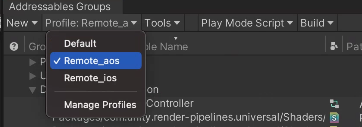
ProjectBuilder.BuildAddressable_AOS/IOSstatic methods in background.- Before building Addressables, check Addressable Profiles.
- In mobile environment this is commonly split into 3 profiles:
Default(included in build),Remote_aos(Android remote),Remote_ios(iOS remote)
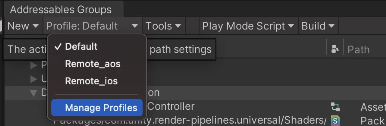
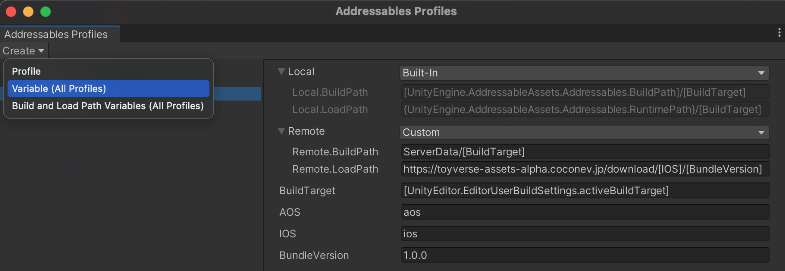
- In Manage Profile, you can add profiles or variables.
- This variable system is important when composing BuildPath and LoadPath URL.
1
# []
- With this bracket syntax, values inside brackets are resolved first, then composed with custom variables.
- These profile names must match names used in your addressable build script.
Full Addressable build code
1
2
3
4
5
6
7
8
9
10
11
12
13
14
15
16
17
18
19
20
21
22
23
24
25
26
27
28
29
30
31
32
33
34
35
36
37
38
39
40
41
42
43
44
45
46
47
48
49
50
51
52
53
54
55
56
57
58
59
60
61
62
63
64
65
66
67
68
69
70
71
72
73
74
75
76
77
78
79
80
81
82
83
84
85
86
#region Build Addressable
    public static string build_script = "Assets/AddressableAssetsData/DataBuilders/BuildScriptPackedMode.asset";
    public static string profile_aos_name = "Remote_aos"; // must match profile names in Addressable Groups
    public static string profile_ios_name = "Remote_ios";
    public static string profile_default = "Default";
    public static void BuildAddressable_AOS()
    {
        Debug.Log("Addressable Build Started haha");
        AddressableAssetSettings settings = AddressableAssetSettingsDefaultObject.Settings;

        settings.activeProfileId = settings.profileSettings.GetProfileId(profile_default);

        IDataBuilder builder = AssetDatabase.LoadAssetAtPath<ScriptableObject>(build_script) as IDataBuilder;
        Debug.Log("Addressable Load AssetPath haha");

        int index = settings.ActivePlayerDataBuilderIndex = settings.DataBuilders.IndexOf((ScriptableObject)builder);
        Debug.Log($"Addressable index number : {index}");

        if (index > 0)
        {
            settings.ActivePlayerDataBuilderIndex = index;
        }
        else if (AddressableAssetSettingsDefaultObject.Settings.AddDataBuilder(builder))
        {
            settings.ActivePlayerDataBuilderIndex = AddressableAssetSettingsDefaultObject.Settings.DataBuilders.Count - 1;
        }
        else
        {
            Debug.LogWarning($"{builder} could not be found");
        }

        Debug.Log($"Addressable Build Content Started!! hh");
        AddressableAssetSettings.BuildPlayerContent(out AddressablesPlayerBuildResult result);

        bool success = string.IsNullOrEmpty(result.Error);

        if (!success)
        {
            Debug.LogError("Addressable build error encountered : " + result.Error);
        }
        else
        {
            Debug.Log("Addressable Build Success!!!");
        }
    }

    public static void BuildAddressable_IOS()
    {
        Debug.Log("Addressable Build Started haha");
        AddressableAssetSettings settings = AddressableAssetSettingsDefaultObject.Settings;

        settings.activeProfileId = settings.profileSettings.GetProfileId(profile_default);

        IDataBuilder builder = AssetDatabase.LoadAssetAtPath<ScriptableObject>(build_script) as IDataBuilder;
        Debug.Log("Addressable Load AssetPath haha");

        int index = settings.ActivePlayerDataBuilderIndex = settings.DataBuilders.IndexOf((ScriptableObject)builder);
        Debug.Log($"Addressable index number : {index}");

        if (index > 0)
        {
            settings.ActivePlayerDataBuilderIndex = index;
        }
        else if (AddressableAssetSettingsDefaultObject.Settings.AddDataBuilder(builder))
        {
            settings.ActivePlayerDataBuilderIndex = AddressableAssetSettingsDefaultObject.Settings.DataBuilders.Count - 1;
        }
        else
        {
            Debug.LogWarning($"{builder} could not be found");
        }

        Debug.Log($"Addressable Build Content Started!! hh");
        AddressableAssetSettings.BuildPlayerContent(out AddressablesPlayerBuildResult result);

        bool success = string.IsNullOrEmpty(result.Error);

        if (!success)
        {
            Debug.LogError("Addressable build error encountered : " + result.Error);
        }
        else
        {
            Debug.Log("Addressable Build Success!!!");
        }
    }
- Important
1
   settings.activeProfileId = settings.profileSettings.GetProfileId(profile_default);
- Always verify profile name passed to
GetProfileIdexactly matches profile configured in Addressable Groups. - If profile is
Default, set tofastest; if profile isRemote, set toUse Existing Build.
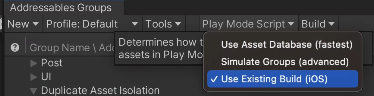
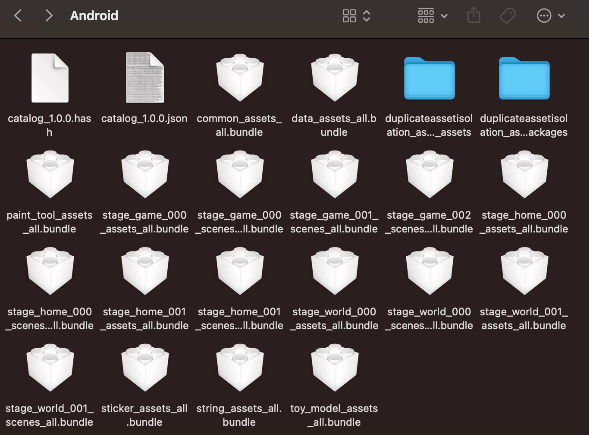
When built with Remote profile, catalog json/hash and bundle files are generated in configured BuildPath (here under project
ServerData).Generated Android/iOS bundle/catalog folders under
ServerData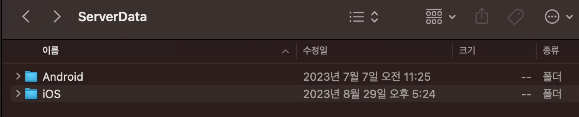
After generation, set LoadPath and upload to AWS S3 to build patch system.
This post is licensed under CC BY 4.0 by the author.