
Unity Build Automation - fastlane
- Unity Build Automation - fastlane
- Unity Build Automation - Build Pipeline & Addressable
- Unity Addressable Build Error Fix - Animator Not Running
- Unity Build Automation - Jenkins
- Unity iOS ~ Xcode Build Pipeline Guide
- Unity iOS - Xcode Code Signing Guide (Certificates & Provisioning Profile)
- Jenkins Build Pipeline - Plugin List

Table of Contents
1. How to install fastlane
2. How to install plugins
3. How to configure FastFile
Introduction
At work, I became responsible for overall iOS/AOS build operations. At first I used Jenkins only and succeeded with Android build automation through Unity Build Pipeline -> AppCenter upload -> Slack notification. But while automating iOS builds, I had difficulty automating Xcode settings such as certificates, provisioning signing, BitCode on/off, and auto signing.
Then our CTO introducedfastlane, and it was much more convenient than Jenkins-only pipelines. I could install required plugins selectively via terminal and customize lanes by editing Fastfile for different build environments. This post records overall setup/integration for fastlane, Jenkins, and Unity Build Pipeline.
Prerequisites / Reference
- macOS
- Homebrew and Bundler installed via Terminal
- Xcode and Unity installed
1. fastlane setup
Install fastlane
- Install with Homebrew
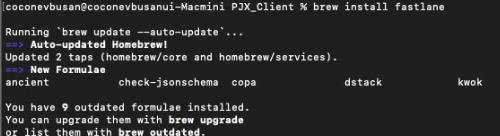
- Open terminal and run
brew install fastlane - If permission issues occur, run
sudo brew install fastlane
- Open terminal and run
- Install bundler
- Run
gem install bundler - If
gemis missing, install Ruby gem first.
- Run
- Set folder where fastlane will be installed
- First move to your target path in terminal.
1
2
# "cd path"
cd /Users/..../GitLab/YourProject
Since fastlane uses Xcode command line tools, for Unity projects you should install fastlane in the iOS build output folder.(There may be other ways.) Also, separate the Xcode folder used for actual project build and the one used for fastlane. If you rebuild project with replace, FastFile can be overwritten.- In practice, since source control is used, you can install fastlane inside project and merge to develop/master branch.
- Build machine must be macOS (we used Mac mini). fastlane does not run on Windows.
- First move to your target path in terminal.
- Initialize fastlane
- Move to path containing Xcode project, then run
fastlane init.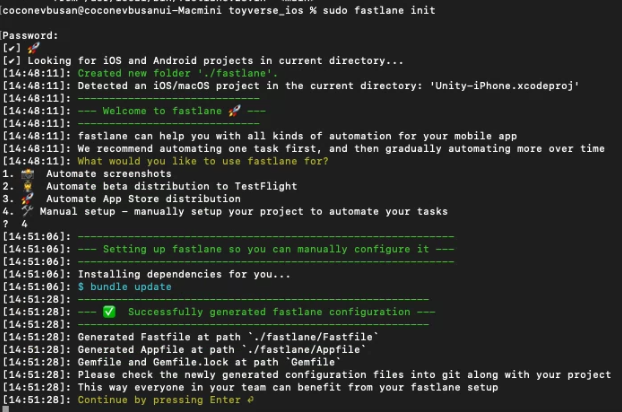
- Keep pressing
continue by pressing enter, then you’ll see Apple ID/password input step. (This can be edited in AppFile later.)
- Move to path containing Xcode project, then run
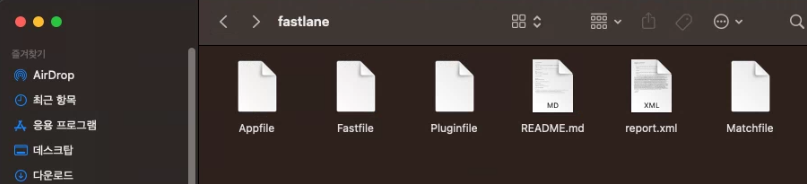
fastlane file structure
- After authentication, files are generated at target path:
Gemfile,Gemfile.lock,fastlane/AppFile,fastlane/FastFile. Installing plugins also generatesPluginFile.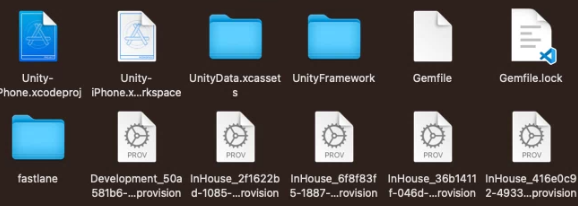
AppFile configuration
- Remove commented
#lines. - Set
app_identifier(e.g.com.companyname.projectname) - Set
apple_idas well (e.g.xxxx@coconev.co.jp)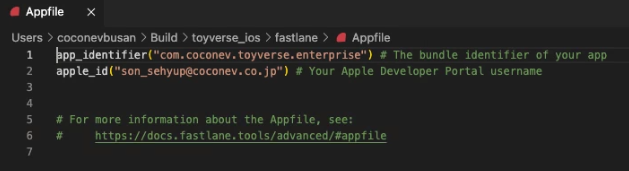
Plugin setup
| Type | Link |
|---|---|
| Unity build | fastlane-plugin-unity |
| AppCenter upload | fastlane-plugin-appcenter |
| Slack bot | fastlane-plugin-slack_bot |
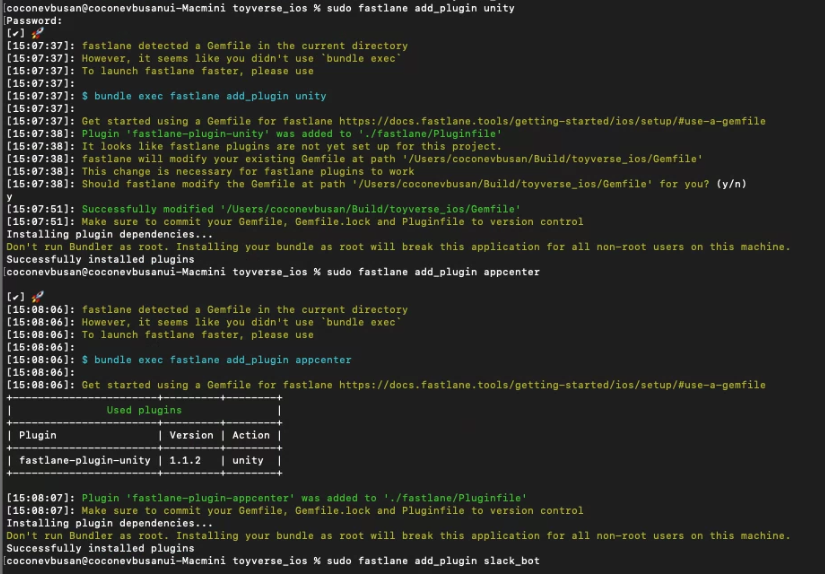
- Run
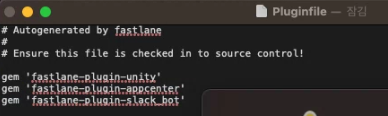
sudo fastlane add_plugin xxx. After installation,Pluginfileis generated as below.
FastFile setup
- The final and core part of fastlane is FastFile.
With Jenkins, you can use fastlane + Unity project on build machine for remote build/deploy.
Using Jenkins Execute Shell, you can run fastlane init -> Addressable Build -> Unity Project Build -> AppCenter Upload.
fastlane docs: fastlane doc
FastFile is Ruby, so I edited it with VS Code.
- platform
- platform means iOS/Android. Use names that are easy to understand in terminal/CI logs.
1
2
platform :android do
platform :ios do
- platform means iOS/Android. Use names that are easy to understand in terminal/CI logs.
- desc
descis description text and appears in fastlane logs.1 2 3
platform: android do desc "Build AOS" end
- lane
- You define what plugin actions run in each lane.
You can split multiple lanes for various build settings/environments.1 2 3 4 5
platform :android do desc "Build AOS" lane :aos_build do end end
- You define what plugin actions run in each lane.
lane - plugin
If plugins are installed, configure like below.- unity plugin
1
2
3
4
5
6
7
# unity plugin
unity(
build_target: "Android",
execute_method: "ProjectBuilder.BuildAndroid", # static method used in Unity Build Pipeline
unity_path: "Applications/Unity/Hub/Editor/2022.3.4f1/Unity.app/Contents/MacOS/Unity" # path to installed Unity version
project_path: "/path/to/your/jenkins/workspace/android_fastlane" # Unity project path
)
- upload_appcenter plugin
1
2
3
4
5
6
7
8
9
10
11
# appcenter_upload
appcenter_upload(
   api_token: "YOUR_APPCENTER_API_TOKEN", # appcenter - settings - API Token
   owner_name: "YOUR_OWNER_NAME", # appcenter owner name
   app_name: "toyverse_alpha_android", # app name on AppCenter
   file: "/path/to/your/build/output.aab", # final file path (.apk / .aab)
   destinations: "*", # distribute to all groups
   destination_type: "group", # group distribution type
   notify_testers: false, # email notification setting
   mandatory_update: true # see docs
)
- Android final example
1
2
3
4
5
6
7
8
9
10
11
12
13
14
15
16
17
18
19
20
21
22
23
24
25
26
27
28
29
30
31
32
33
34
35
platform :android do
  desc "Build AOS"
  lane :aos_build do
    unity(
      build_target: "Android",
      execute_method: "ProjectBuilder.BuildAndroid",
      unity_path: "Applications/Unity/Hub/Editor/2022.3.4f1/Unity.app/Contents/MacOS/Unity",
      project_path: "/Users/Admin/.jenkins/workspace/android_fastlane"
    )
 end

 desc "Upload AppCenter"
 lane :upload_appcenter do
    appcenter_upload(
      api_token: "YOUR_APPCENTER_API_TOKEN",
      owner_name: "YOUR_OWNER_NAME",
      app_name: "toyverse_alpha_android",
      file: "/path/to/your/build/output.aab",
      destinations: "*",
      destination_type: "group",
      notify_testers: false,
      mandatory_update: true
    )
 end

 desc "Build Addressable"
 lane :addressable do
    unity(
      build_target: "Android",
      execute_method: "ProjectBuilder.BuildAddressable",
      unity_path: "Applications/Unity/Hub/Editor/2022.3.4f1/Unity.app/Contents/MacOS/Unity",
      project_path: "/Users/Admin/.jenkins/workspace/android_fastlane"
    )
 end
end
- iOS Unity build
1
2
3
4
5
6
7
8
9
# build ios unity project
desc "Build Unity Project iOS"
lane :unity_ios do
 unity(
   build_target: "iOS",
   execute_method: "ProjectBuilder.BuildIOS",
   unity_path: "Applications/Unity/Hub/Editor/2022.3.4f1/Unity.app/Contents/MacOS/Unity",
   project_path: "/Users/Admin/.jenkins/workspace/android_fastlane"
 )
- Xcode build
1
2
3
4
5
6
7
8
9
desc "Xcode build GYM"
lane :build_ios_gym do
 clear_derived_data
 gym(
   scheme: "Unity-iPhone",
   export_method: "enterprise",
   clean: true,
   output_directory: "/Users/YOUR_USERNAME/Build/toyverse_ipa"
 )
- Xcode build has various commands (
build_appetc.), butgymwas simplest with fewer manual settings. - Especially for auto signing, bitcode, and library version issues,
gymreduced many manual tasks. - Example GymFile
To usegym, configure GymFile: scheme, export method, provisioning profile, output path/name. In my case, setting provisioning in FastFile was unstable, while GymFile worked reliably up to ipa output.
1
2
3
4
5
6
7
8
9
10
11
scheme("Unity-iPhone")

clean(true)
export_method("enterprise")
export_options({
   provisioningProfiles:{
         "com.coconev.toyverse.enterprise" => "toyverse_inhouse"
      }
   })
output_directory("/Users/YOUR_USERNAME/Build/toyverse_ipa")
output_name("toyverse_ios")
- Certificate registration: »click«
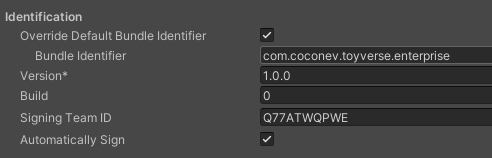
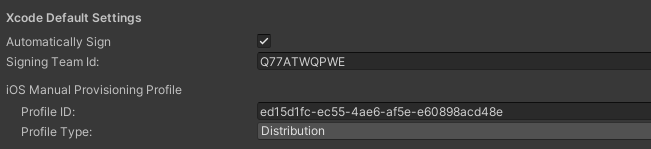
- Unity Xcode auto-signing / provisioning profile setup
- #1. Player Settings - Other Settings -> Identification
- #2. Preferences - External Tools -> Xcode Default Settings (on macOS, under settings)
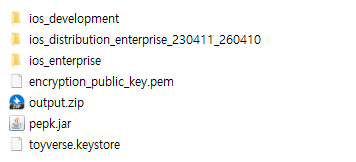
- It’s convenient to keep certificates/profiles (and Android keystore as well) managed inside project.
- #1. Player Settings - Other Settings -> Identification