
Unity Localization Integration

Unity Localization Integration
Localization Series (1 / 3)
- Unity Localization Integration
- Using Unity Localization More Efficiently
- Unity Localization - Smart Strings 활용 방법

Table of Contents
- 1. Install Localization
- 2. Localization environment setup
- 3. Integrate Google Sheets
- 4. How to use in UGUI
- 5. How to configure Asset Table
- 6. Localization customization
Localization integration and usage
- Localization is essential for live game services. Combined with TextMeshPro and String Event, you can switch UI text automatically based on selected language.
1. Install Localization
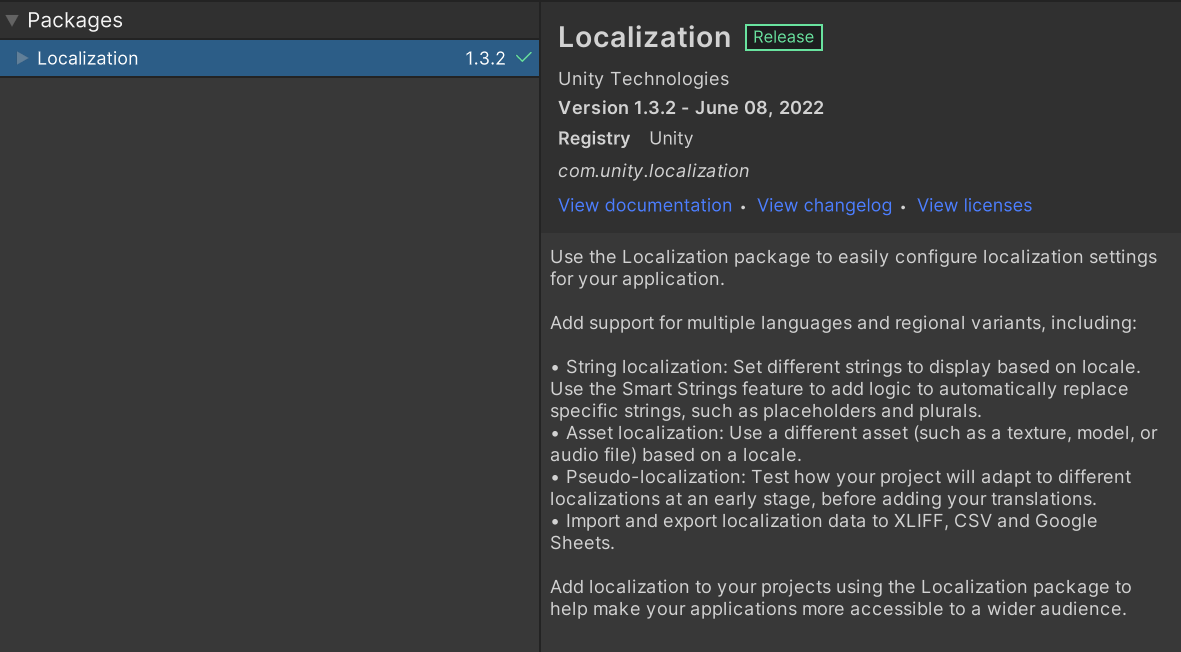
- Install Localization from Package Manager.
2. Localization environment setup
- In
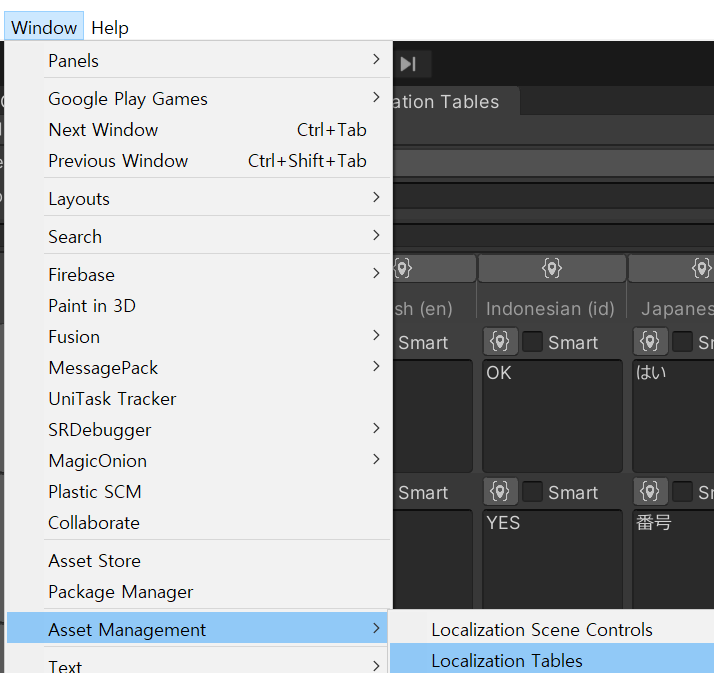
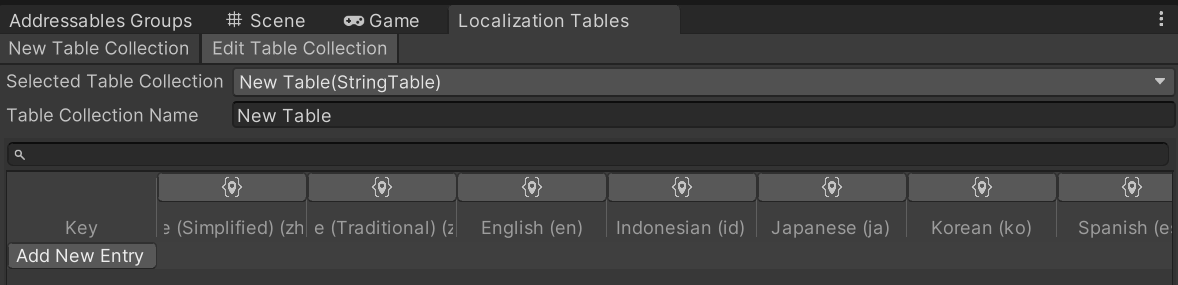
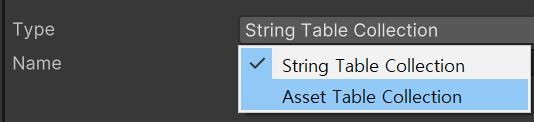
Window - Asset Management - Localization Tables, you can create/manage String Table and Asset Table.
- At the top,
NewTableCollectionmeans create,EditTableCollectionmeans edit.
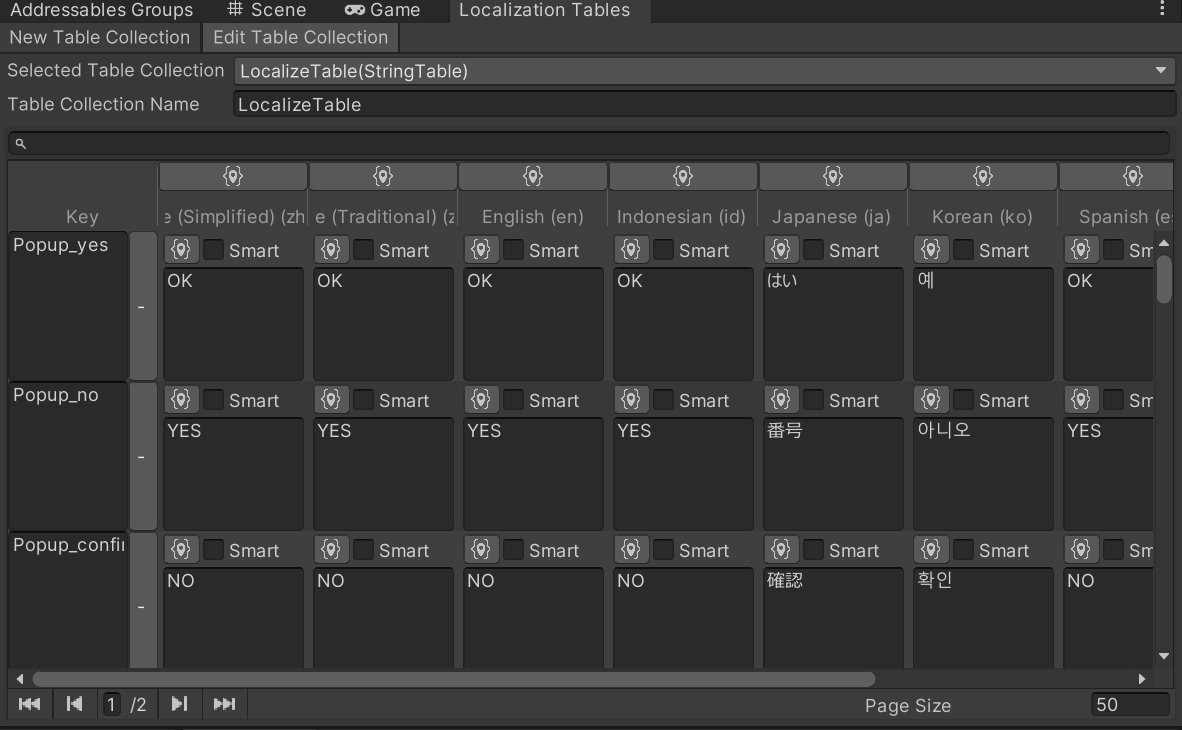
- String Table references string keys and stores translated values per locale.
Asset Table stores assets such as fonts and font materials.
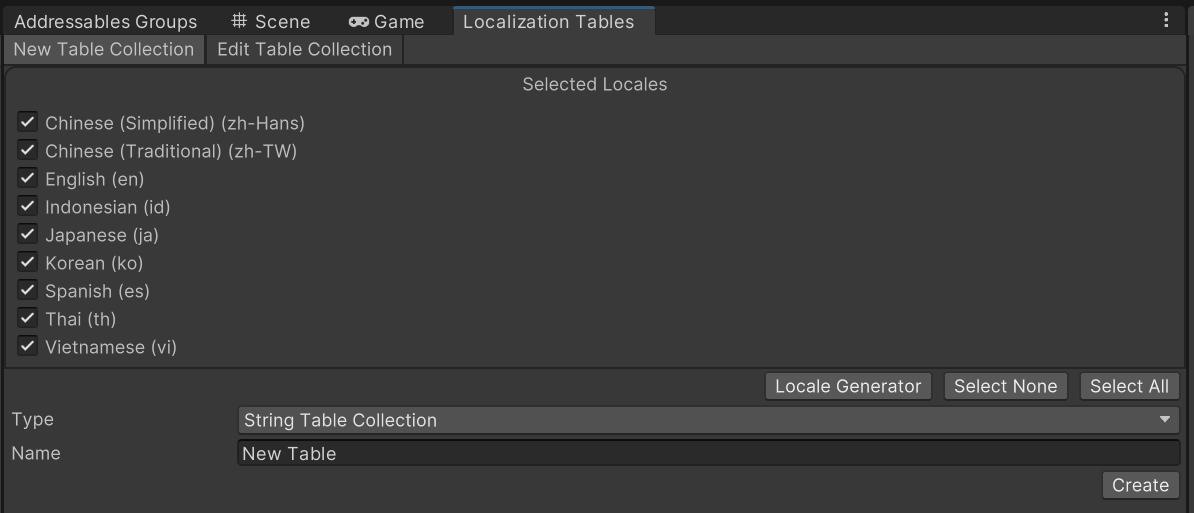
- In Edit Table mode, click
Add New Entryto add rows.

- With
Locale Generator, you can add target languages/locales (each locale has a unique code).
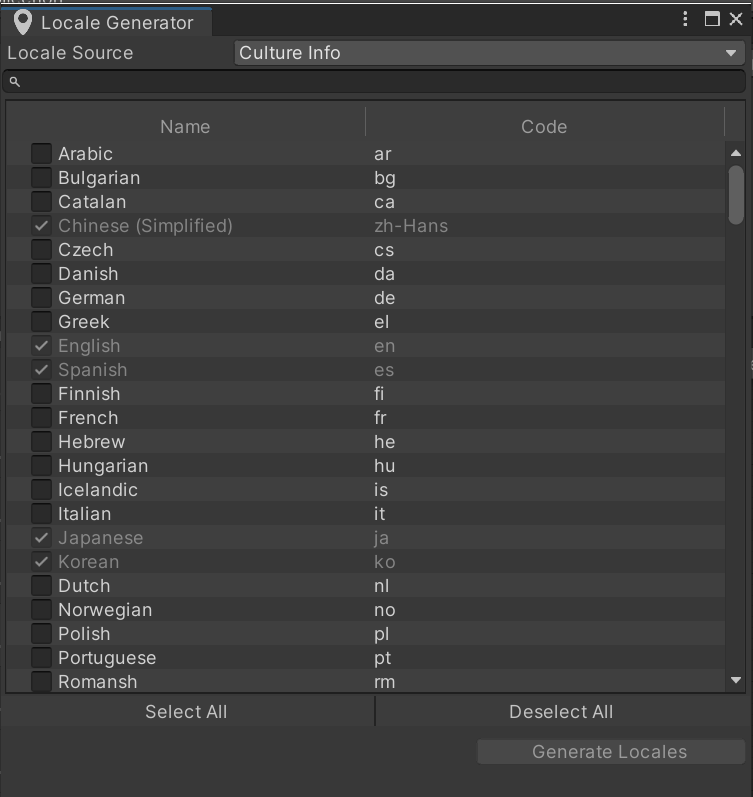
- Click
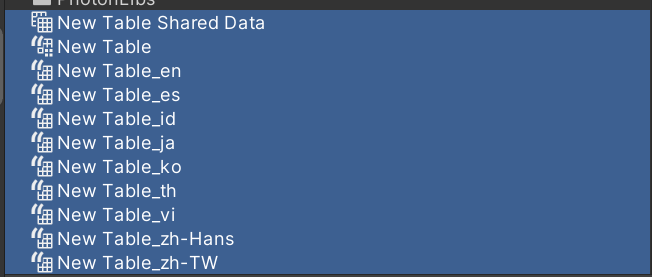
Createto choose install folder path for tables. - Then table assets, shared data, and locale tables are generated in that path.

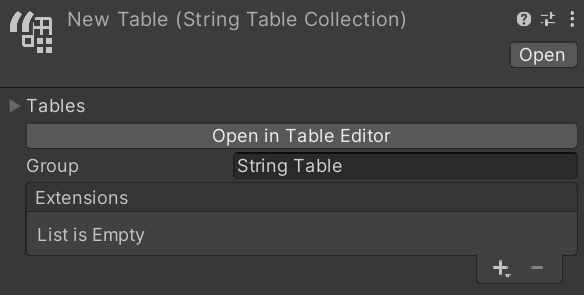
- Looking inside String Collection Table:
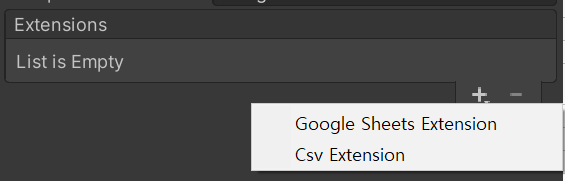
- You can add Extensions such as CSV and Google Sheets.
- This post covers Google Sheets integration.
3. Integrate Google Sheets
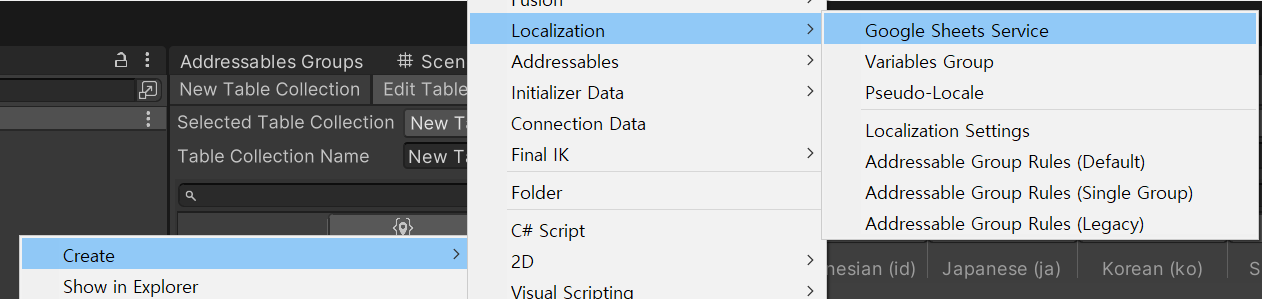
- In Project tab:
Create - Localization - Google Sheet Service.
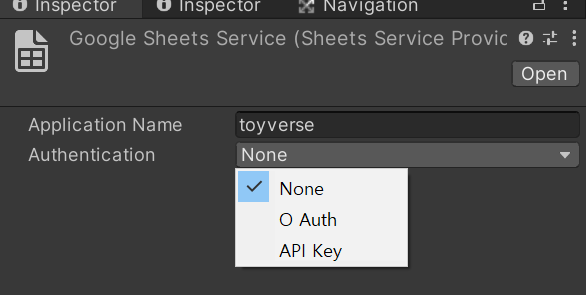
- In Inspector, configure Authentication.
- Choose either Google OAuth or API Key via Google Cloud Service. (I used OAuth.)
How to register OAuth credentials
- Open Google Cloud Console.
- Complete signup/consent.
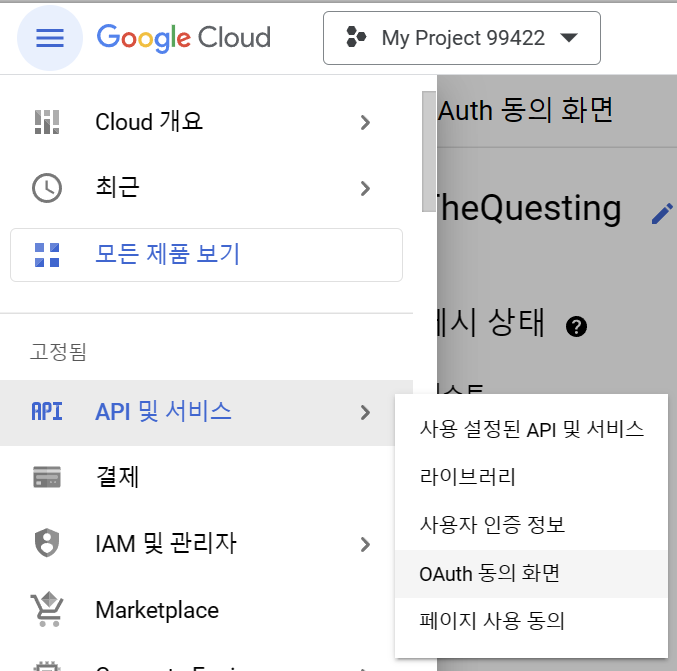
- Go to
API & Services - OAuth consent screen.
- Click
Edit Appnext to project name.
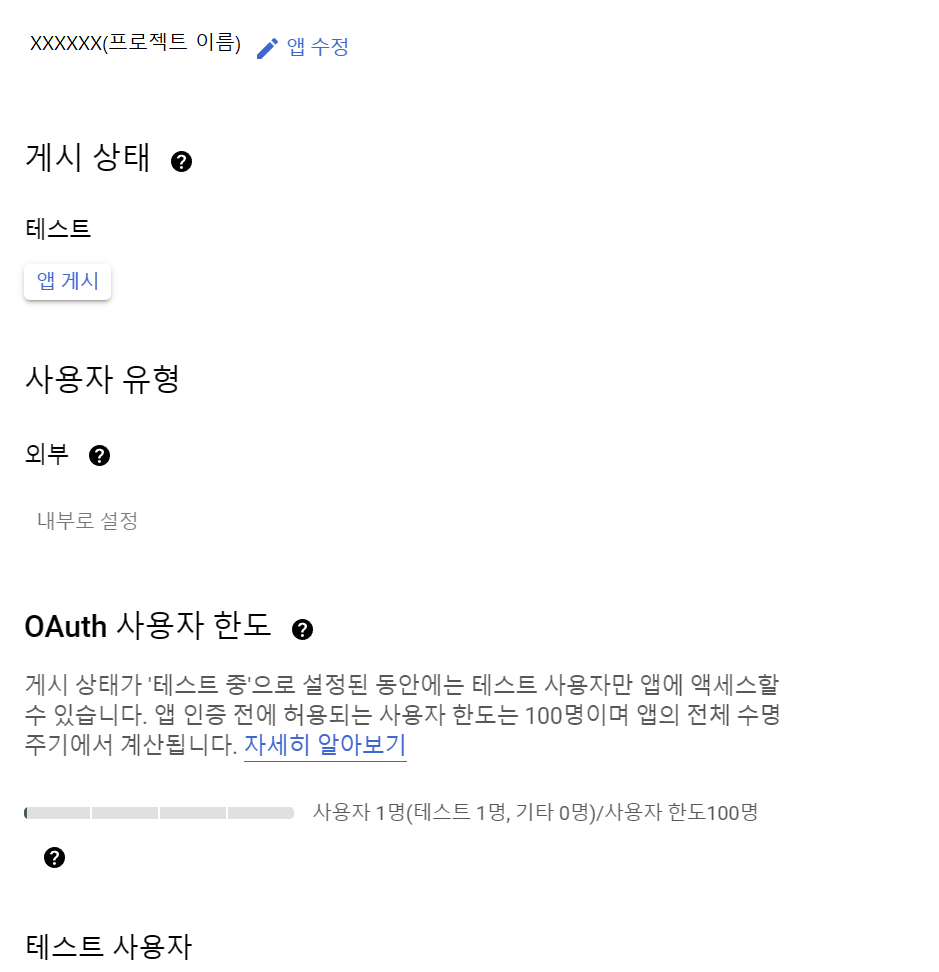
- In app settings, set app name and support email.
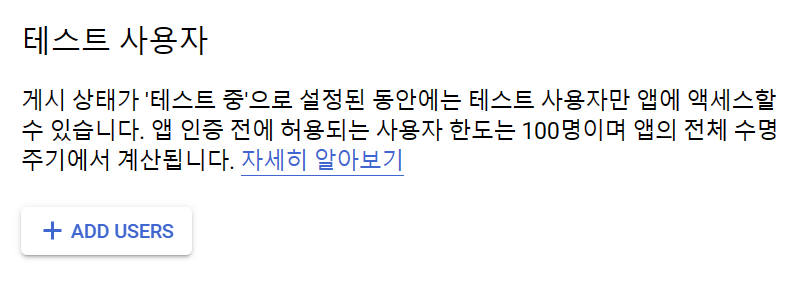
- Move to test users section.
- Add test users via
+ ADD USERS(required for Sheets access).

- Then move to Credentials tab.
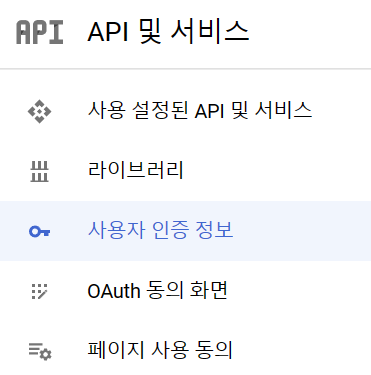
- Confirm OAuth client ID and secret are created.
- Click client name.

- Finally copy client ID and secret.

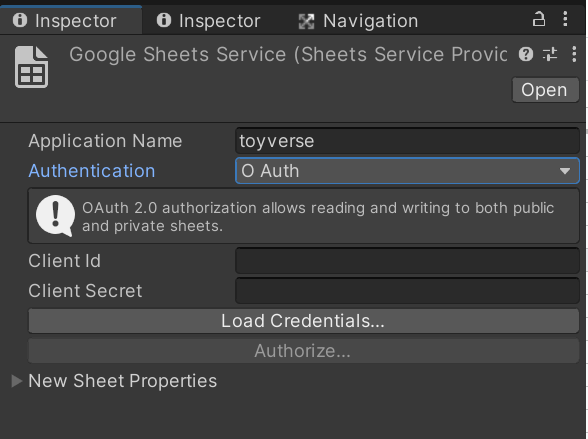
- Back in Unity, in Google Sheet Service inspector select OAuth authentication.
- Paste client ID/secret and click
Authorize...to complete account auth in browser.
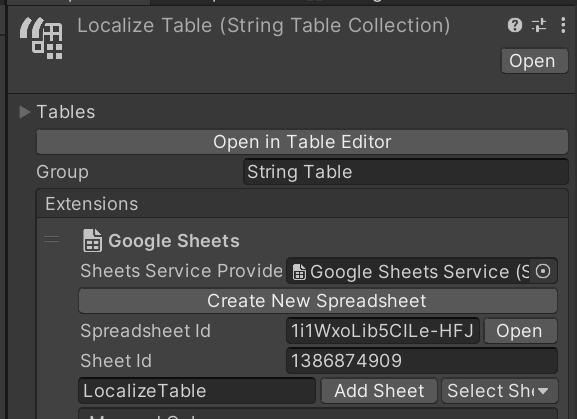
- In Localize Table (String Table Collection) inspector, add Google Sheets Extension to Extensions list.
- Register the Google Sheet Service Provider asset you created.
- You can create a new spreadsheet in your Google Drive via
Create New SpreadSheet. - Or connect an existing spreadsheet by entering Spreadsheet ID and Sheet ID.
Important notes
- Enable Google Sheets API for your credentials.
- Spreadsheet sharing must be public or include authorized users.
- Only then can Localization Push/Pull work inside Unity.

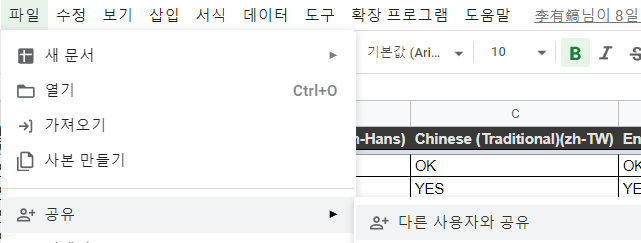
- Before pulling linked Google Spreadsheet,
- Map the columns first.
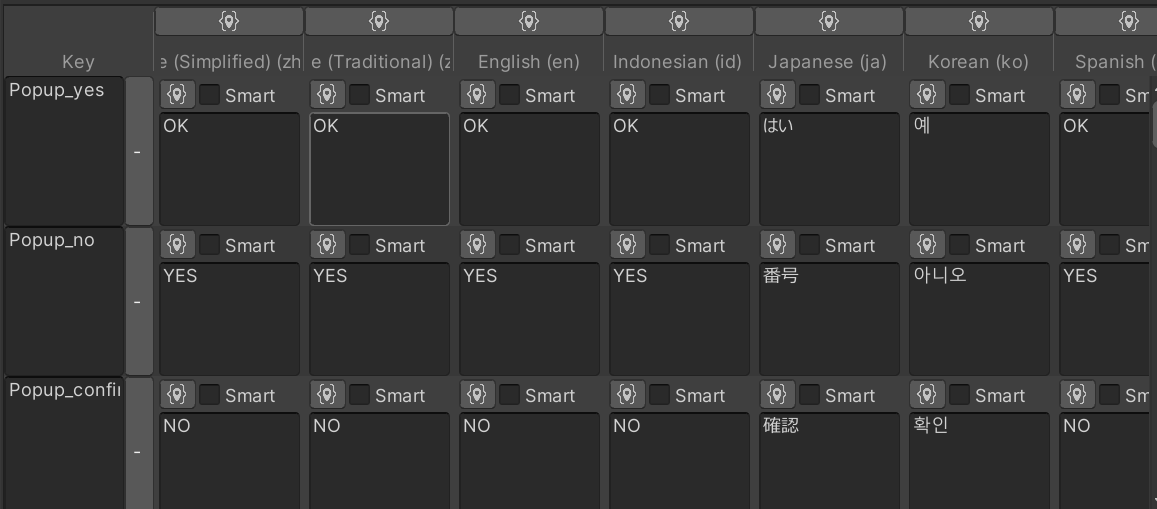
- Add one key column + one localized column per language.
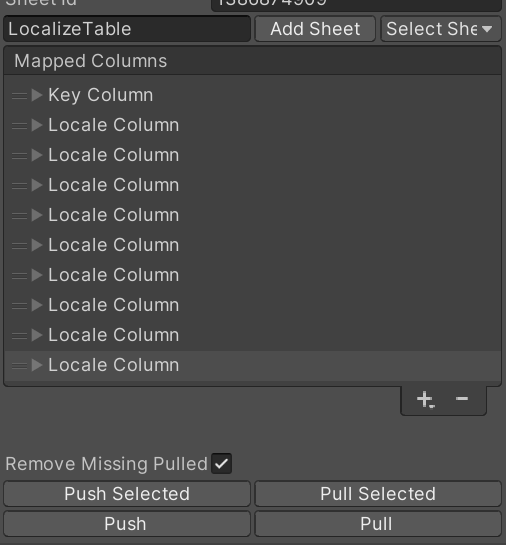
- Example after adding all columns/localized columns:
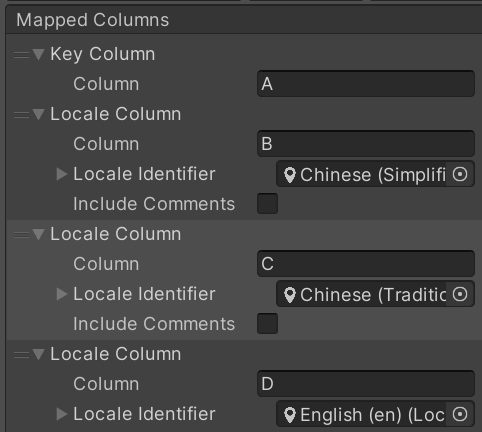
- After mapping, click
Pullto fetch data from Google Spreadsheet.Push is not recommended. There is no clear “who pushed” history, and Push/Pull can conflict.
In practice, teams edit spreadsheet directly and only Pull into client/editor. - Also, editing Table info directly in Unity Editor is usually not recommended.
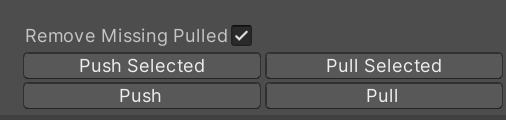
- Localization table on Google Spreadsheet:

- Corresponding view in Unity Table Collection:
4. How to use Localization in UGUI
Requirements
- UGUI text type must be
TextMeshPro - Text (UI). Localize String Eventcomponent must be attached.- If you also want to localize font/font material, create and attach helper components like below.
1
2
3
4
5
6
7
8
9
10
11
12
13
14
15
using System;
using TMPro;
using UnityEngine;
using UnityEngine.Events;
using UnityEngine.Localization;
using UnityEngine.Localization.Components;

namespace Base
{
    [AddComponentMenu("Localization/Asset/" + nameof(LocalizedTmpFontEvent))]
    public class LocalizedTmpFontEvent : LocalizedAssetEvent<TMP_FontAsset, LocalizedTmpFont, UnityEventTmpFont> {}

    [Serializable]
    public class UnityEventTmpFont : UnityEvent<TMP_FontAsset> {}
}
1
2
3
4
5
6
7
8
9
10
11
12
13
14
15
16
17
18
19
20
21
22
23
24
25
26
27
28
29
30
31
32
33
34
35
36
37
38
39
40
41
42
using System;
using TMPro;
using UnityEngine;
using UnityEngine.Events;
using UnityEngine.Localization;
using UnityEngine.Localization.Components;
using Cysharp.Threading.Tasks;

namespace Base
{
    [AddComponentMenu("Localization/Asset/" + nameof(LocalizedTmpFontMaterialEvent))]
    public class LocalizedTmpFontMaterialEvent : LocalizedAssetEvent<Material, LocalizedMaterial, UnityEventTmpFontMaterial>
    {
        private TextMeshProUGUI _targetText;

        private void Start()
        {
            _targetText = GetComponent<TextMeshProUGUI>();
        }

        protected override async void UpdateAsset(Material localizedAsset)
        {
            if (_targetText == null)
            {
                _targetText = GetComponent<TextMeshProUGUI>();
            }

            if (_targetText != null)
            {
                await UniTask.WaitUntil(() => localizedAsset);
                _targetText.fontMaterial = localizedAsset;
            }
            else
            {
                Debug.LogError("[ LocalizedTmpFontMaterialEvent / UpdateAsset ] TextMeshPro is null");
            }
        }
    }

    [Serializable]
    public class UnityEventTmpFontMaterial : UnityEvent<Material> {}
}
How to use as Components
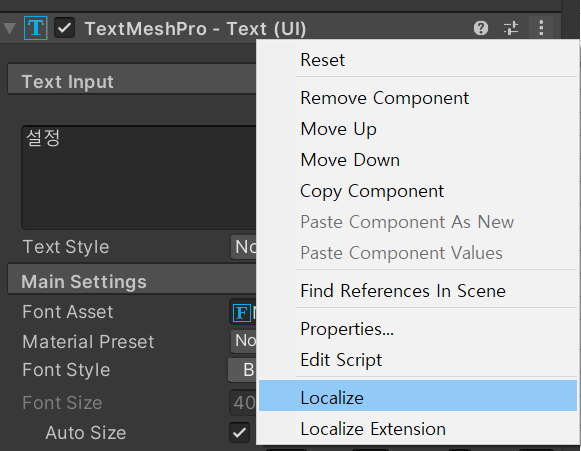
- Add
Localize String Eventcomponent.
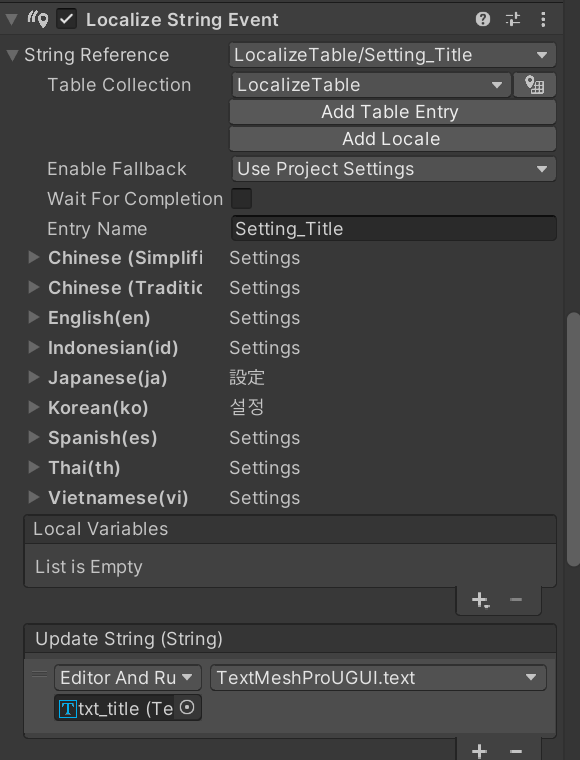
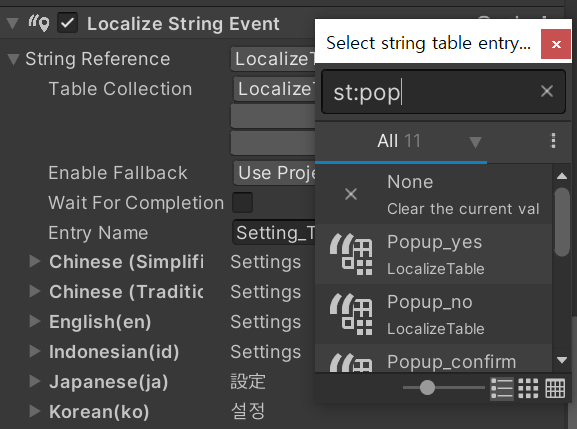
- Click String Reference to search/assign table key.
- Table Collection is auto-assigned.
- Inspector previews localized values by language and lets you assign TMP text target for update.
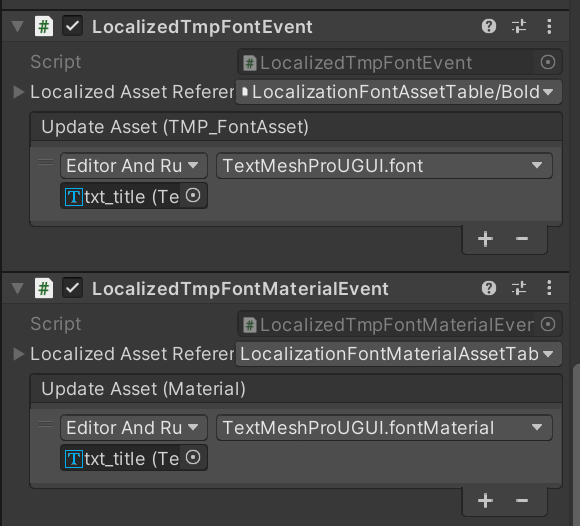
- If you also want to localize font and font material,
- Register additional components via Add Component or Localize Extension.
1
2
3
4
5
6
7
8
9
10
11
12
13
14
15
16
17
18
19
20
21
22
23
24
25
26
27
28
29
30
31
32
33
34
35
36
37
38
39
40
41
42
43
44
45
46
47
48
49
50
51
52
53
54
55
using System;
using Base;
using TMPro;
using UnityEditor;
using UnityEditor.Events;
using UnityEngine;
using UnityEngine.Events;
using UnityEngine.Localization.Components;

static class TMProLocalizeExtension
{
    [MenuItem("CONTEXT/TextMeshProUGUI/Localize Extension")]
    static void LocalizeTMProTextWithFontAssets(MenuCommand command)
    {
        var target = command.context as TextMeshProUGUI;
        SetupForLocalizeString(target);
        SetupForLocalizeTmpFont(target);
        SetupForLocalizeTmpFontMaterial(target);
    }

    static void SetupForLocalizeString(TextMeshProUGUI target)
    {
        var comp = Undo.AddComponent(target.gameObject, typeof(LocalizeStringEvent)) as LocalizeStringEvent;
        comp.SetTable("LocalizeTable");
        var setStringMethod = target.GetType().GetProperty("text").GetSetMethod();
        var methodDelegate =
            Delegate.CreateDelegate(typeof(UnityAction<string>), target, setStringMethod) as UnityAction<string>;
        UnityEventTools.AddPersistentListener(comp.OnUpdateString, methodDelegate);
        comp.OnUpdateString.SetPersistentListenerState(0, UnityEventCallState.EditorAndRuntime);
    }

    static void SetupForLocalizeTmpFont(TextMeshProUGUI target)
    {
        var comp = Undo.AddComponent(target.gameObject, typeof(LocalizedTmpFontEvent)) as LocalizedTmpFontEvent;
        var setStringMethod = target.GetType().GetProperty("font").GetSetMethod();
        var methodDelegate =
            Delegate.CreateDelegate(typeof(UnityAction<TMP_FontAsset>), target, setStringMethod) as
                UnityAction<TMP_FontAsset>;

        UnityEventTools.AddPersistentListener(comp.OnUpdateAsset, methodDelegate);
        comp.OnUpdateAsset.SetPersistentListenerState(0, UnityEventCallState.EditorAndRuntime);
    }

    static void SetupForLocalizeTmpFontMaterial(TextMeshProUGUI target)
    {
        var comp = Undo.AddComponent(target.gameObject, typeof(LocalizedTmpFontMaterialEvent)) as LocalizedTmpFontMaterialEvent;
        var setStringMethod = target.GetType().GetProperty("fontMaterial").GetSetMethod();
        var methodDelegate =
            Delegate.CreateDelegate(typeof(UnityAction<Material>), target, setStringMethod) as
                UnityAction<Material>;

        UnityEventTools.AddPersistentListener(comp.OnUpdateAsset, methodDelegate);
        comp.OnUpdateAsset.SetPersistentListenerState(0, UnityEventCallState.EditorAndRuntime);
    }
}
- Changing language in-game or in editor updates UGUI text automatically.
How to use by Script
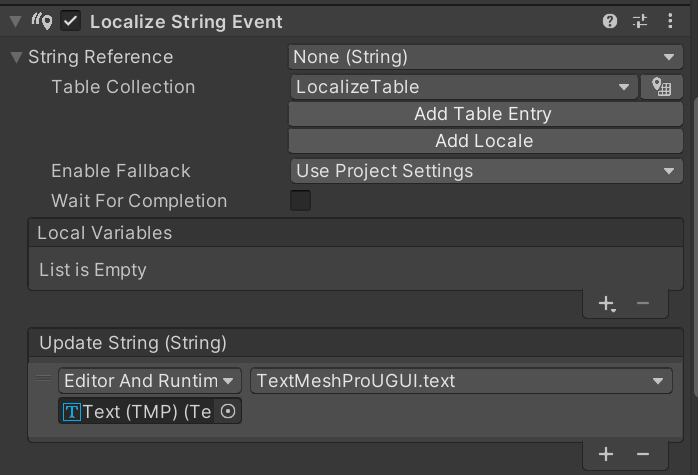
- If UGUI is created dynamically, you can localize by script instead of inspector component setup.
- Assign Update String dynamically as shown below.
Script examples


- Get
LocalizeStringEventviaGetComponentand callSetEntry(key). - It finds key in Table Collection and applies localized text to current locale TMP text.
Additionally, dynamic text arguments
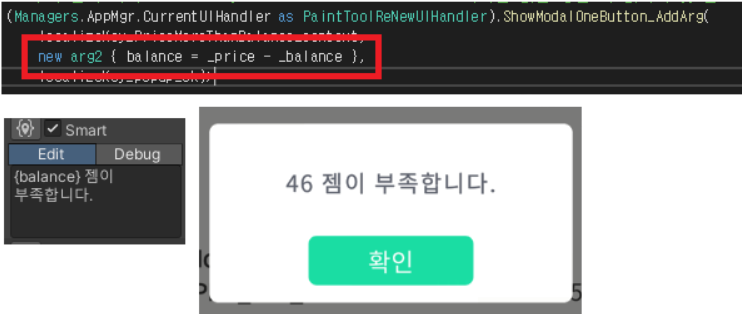
- For dynamic values (balance, username, etc.):
- Enable Smart on key entry, put argument token in
{}in table, and assign args in code beforeSetEntry.

- Example in CommonModal
Example code
1
2
3
4
5
6
7
8
9
10
11
12
13
14
15
16
17
18
19
20
21
22
23
24
25
26
27
28
29
30
31
32
33
34
35
36
37
38
39
40
41
42
43
44
45
46
47
48
49
50
51
52
53
54
55
56
57
58
59
60
61
62
63
64
65
66
67
68
69
70
71
72
73
74
75
76
77
78
79
80
81
82
83
84
using System;
using System.Collections;
using TMPro;
using UniRx;
using UnityEngine;
using UnityEngine.Localization.Components;
using UnityEngine.UI;

public struct CommonModalContents
{
	public readonly string _titleTextKey;
	public readonly string _contentsTextKey;
	public readonly string _buttonTextKey;
	public readonly Action _buttonAction;
	public LocalizeArgBase _arg;

	public CommonModalContents(string contentsTextKey_, string buttonTextKey_, Action buttonAction_, string titleTextKey_ = "타이틀")
	{
		_titleTextKey = titleTextKey_;
		_contentsTextKey = contentsTextKey_;
		_buttonTextKey = buttonTextKey_;
		_buttonAction = buttonAction_;
		_arg = new LocalizeArgBase();

	}

	public CommonModalContents(string contentsTextKey_, LocalizeArgBase arg_, string buttonTextKey_, Action buttonAction_, string titleTextKey_ = "타이틀")
	{
		_titleTextKey = titleTextKey_;
		_contentsTextKey = contentsTextKey_;
		_buttonTextKey = buttonTextKey_;
		_buttonAction = buttonAction_;
		_arg = arg_;
	}

}
[Serializable]
public class LocalizeArgBase { };
public class LocalizeArg_PurchaseBalance : LocalizeArgBase
{
	public int balance;
}


public class CommonModal : UIPopup
{
	[SerializeField] private CanvasGroup _canvasGroup;
	[SerializeField] protected TextMeshProUGUI _titleText;
	[SerializeField] protected LocalizeStringEvent _titleTextLocalize;
	[SerializeField] protected TextMeshProUGUI _contentsText;
	[SerializeField] protected LocalizeStringEvent _contentTextLocalize;
	[SerializeField] private LocalizeStringEvent _buttonTextLocalize;
	[SerializeField] private Button _button;
	[SerializeField] private VerticalLayoutGroup _verticalLayoutGroup;

	private void Awake()
	{
		_contentTextLocalize.OnUpdateString.AsObservable().TakeUntilDestroy(this.gameObject).Select(value => value).Subscribe(value =>
		{
			_contentsText.text = _contentsText.text.Replace("\\n", "\n");
			Observable.FromCoroutine(RefreshCoroutine).TakeUntilDestroy(this.gameObject).Subscribe(_ => { }, () => { _canvasGroup.alpha = 1.0f; });
		});
	}

	public void SetCommonModal(CommonModalContents contents_)
	{
        // 어떤 팝업창인지 구분하기 위해 임시로 설정
        _titleText.text = contents_._titleTextKey;
        //_titleTextLocalize.SetEntry(contents_._titleTextKey);
		_contentTextLocalize.StringReference.Arguments = new[] { contents_._arg };
		_contentTextLocalize.SetEntry(contents_._contentsTextKey);
		_contentTextLocalize.RefreshString();
		_buttonTextLocalize.SetEntry(contents_._buttonTextKey);
		AdditionalFunction.SetSafeButtonActionOnlyOneCall(_button, contents_._buttonAction, this.gameObject);
	}

	private IEnumerator RefreshCoroutine()
	{
		Canvas.ForceUpdateCanvases();
		_verticalLayoutGroup.enabled = false;
		yield return null;
		_verticalLayoutGroup.enabled = true;
	}
}
5. How to configure Asset Table
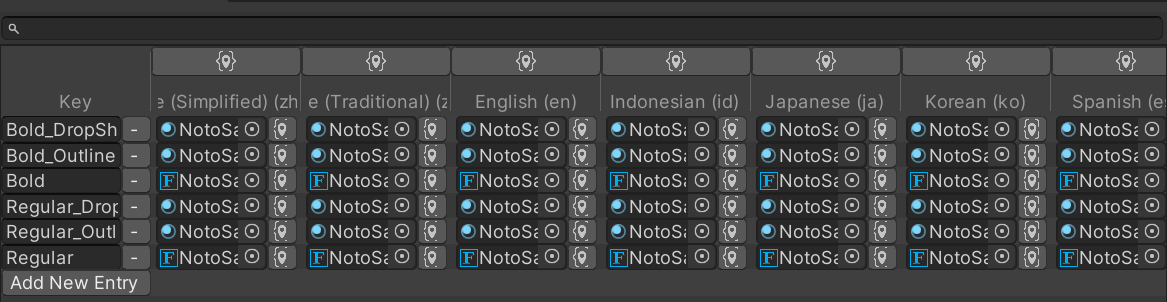
- In New Table Collection, besides String Table there is Asset Table.
- Asset Table maps font/font material per locale code.
Font Asset Table

- Example uses
NotoSansand registers variations as keys. - Register generated font variants (Regular, Bold, etc.) per locale.
- Then switching language (kr/jp/en) automatically swaps fonts.
Font Material Asset Table
6. Localization customization
- During development, several localization issues occurred.
- First, text lengths vary greatly by language, so line breaks happen and text size adjustments are often needed.
- Second, UI-specific font style customizations (color, bold, etc.) were required.
For the first issue, you can set different fonts by language, but that increases font size footprint. In many cases, teams standardize to one font.
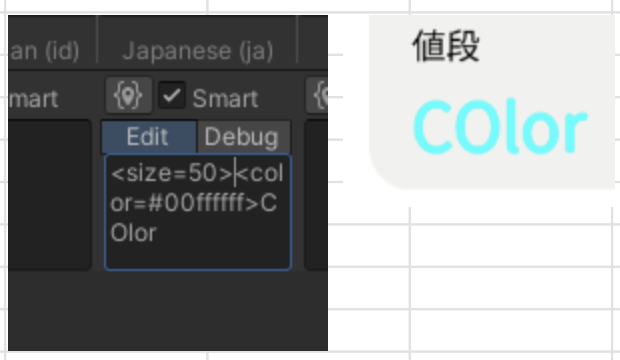
- The practical solution is using Rich Text.
- By adding rich text tags directly in localization table entries, many styling issues are solved simply.
- However, TMP itself has overhead and can increase draw calls, so use this mainly for lightweight text UI (font/size/color adjustments).
- Unity Rich Text docs:
- Example:
This post is licensed under CC BY 4.0 by the author.