
Integrating Google Sheet with Unity


Table of Contents
Google Sheet Sync Code
1. DataSheet Integration Code
You can use UnityWebRequest to download Google Sheet data by gid and save it as a csv file.
* You can build this as a UnityEditor tool and use it that way.
Additional note: put each sheet gid into the Sheets[] array to fetch multiple csv files at once.
1
2
3
4
5
6
7
8
9
10
11
12
13
14
15
16
17
18
19
20
21
22
23
24
25
26
27
28
29
30
31
32
33
34
35
36
37
38
39
40
41
42
43
44
45
46
47
48
49
50
51
52
53
54
55
56
57
58
59
60
61
62
63
64
65
66
67
68
69
70
71
72
73
74
75
76
77
78
79
80
81
82
83
84
85
86
87
88
89
90
91
92
93
94
95
96
97
98
99
100
101
102
103
104
105
106
107
108
109
110
111
112
113
114
115
116
117
118
119
120
121
122
123
124
125

using System;
using System.Collections;
using System.Collections.Generic;
using System.Linq;
using UnityEngine;
using UnityEngine.Networking;
using Cysharp.Threading.Tasks;

namespace DataSheets
{
    [Serializable]
    public struct Sheet
    {
        public string Name;
        public long Id;
    }

    /// <summary>
    /// Downloads spritesheets from Google Spreadsheet and saves them to Resources.
    /// </summary>
    [ExecuteInEditMode]
    public class GoogleSheetSync : MonoBehaviour
    {
        /// <summary>
        /// Table id on Google Spreadsheet.
        /// Let's say your table has the following url https://docs.google.com/spreadsheets/d/1RvKY3VE_y5FPhEECCa5dv4F7REJ7rBtGzQg0Z_B_DE4/edit#gid=331980525
        /// So your table id will be "1RvKY3VE_y5FPhEECCa5dv4F7REJ7rBtGzQg9Z_B_DE4" and sheet id will be "331980525" (gid parameter)
        /// </summary>
        public string TableId;

        /// <summary>
        /// Table sheet contains sheet name and id. First sheet has always zero id. Sheet name is used when saving.
        /// </summary>
        public Sheet[] Sheets;

        /// <summary>
        /// Folder to save spreadsheets. Must be inside Resources folder.
        /// </summary>
        public UnityEngine.Object outPutFolder;

        private const string UrlPattern = "https://docs.google.com/spreadsheets/d/{0}/export?format=csv&gid={1}";

#if UNITY_EDITOR

        public void DataSync()
        {
            SyncSheetData().Forget();
        }

        public async UniTaskVoid SyncSheetData()
        {
            string folder = UnityEditor.AssetDatabase.GetAssetPath(outPutFolder);

            Debug.Log("<size=15><color=yellow>Sync started, please wait for confirmation message...</color></size>");

            var dict = new Dictionary<string, UnityWebRequest>();

            if(String.IsNullOrEmpty(TableId))
            {
                Debug.LogError("Table ID is Empty !!");
                return;
            }

            try
            {
                Debug.Log("<size=15><color=yellow> Set Sheet URL Info....</color></size>");

                foreach (var sheet in Sheets)
                {
                    var url = string.Format(UrlPattern, TableId, sheet.Id);

                    Debug.Log($"Downloading: {url}...");

                    dict.Add(url, UnityWebRequest.Get(url));
                }

                if (dict.Count < 1)
                {
                    Debug.LogError("Sheet Count Zero !!");
                    return;
                }

                Debug.Log("<size=15><color=yellow> Request Sheet Data.... </color></size>");

                foreach (var entry in dict)
                {
                    var url = entry.Key;
                    var request = entry.Value;

                    if (!request.isDone)
                    {
                        await request.SendWebRequest();
                    }

                    if (request.error == null)
                    {
                        var sheet = Sheets.Single(i => url == string.Format(UrlPattern, TableId, i.Id));
                        var path = System.IO.Path.Combine(folder, sheet.Name + ".csv");

                        System.IO.File.WriteAllBytes(path, request.downloadHandler.data);

                        Debug.LogFormat("Sheet {0} downloaded to {1}", sheet.Id, path);
                    }
                    else
                    {
                        Debug.LogError("request.error:" + request.error);

                        throw new Exception(request.error);
                        }
                }

                UnityEditor.AssetDatabase.Refresh();

                Debug.Log("<size=15><color=green>Successfully Synced!</color></size>");
            }
            catch(Exception e)
            {
                Debug.LogError(e);
            }
        }

#endif
    }
}
2. DataSheet Editor Code
1
2
3
4
5
6
7
8
9
10
11
12
13
14
15
16
17
18
19
20
21
22
    /// <summary>
    /// SpreadSheetSync custom Editor UI
    /// </summary>
    [CustomEditor(typeof(GoogleSheetSync))]
    public class GoogleSheetSyncEditor : Editor
    {
        public override void OnInspectorGUI()
        {
            DrawDefaultInspector();

            GUIStyle style = new GUIStyle(GUI.skin.button);
            style.normal.textColor = Color.green;
            style.fontSize = 20;

            var component = (GoogleSheetSync)target;

            if (GUILayout.Button("Get Data Sync", style))
            {
                component.DataSync();
            }
        }
    }
3. How to Find Table ID and Sheet gid
You can also add this to the top toolbar as a custom menu and use it there. In many companies, table updates happen in longer cycles, so for convenience I usually placed it in the scene and used it as a prefab.
In short: in the Google Sheet Sync component in Inspector, enter your Google Spreadsheet Table ID, then input each sheet’s name and gid in the Sheets array. 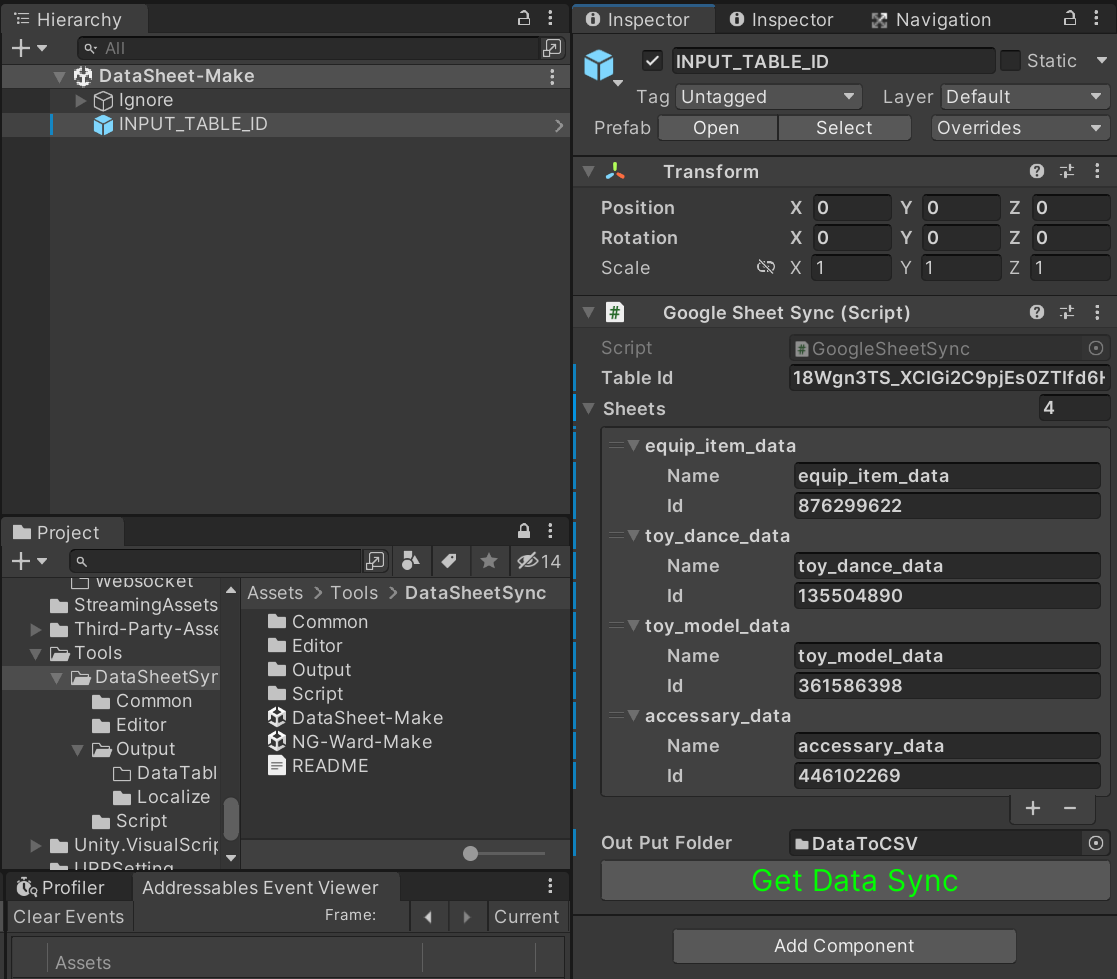
Table ID means the highlighted part in the URL, as shown below.

You need to enter each Sheet info in the Sheet[] array. For Sheet ID, input gid; for Name, use the sheet name shown at the bottom tab.
- ID

- Name

4. Fetching Data
After entering all tables you want to load, press the “Get Data Sync” button.
Important: if a table was deleted in the spreadsheet, reflect that deletion in the component as well to avoid errors.
Also, if there are changes in Sheets, keep existing entries and only append additional sheets when possible.
For modified scenes/prefabs, syncing through SVN or your collaboration tool is convenient. 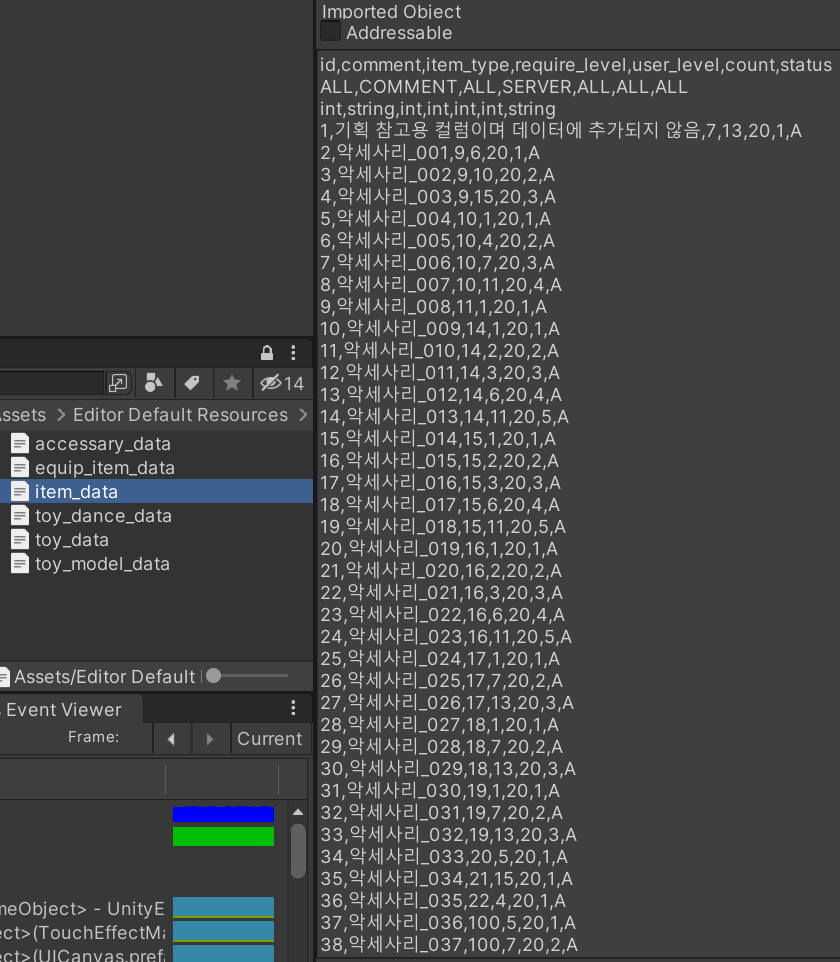
Finally, the tables in the spreadsheet were successfully imported as csv files.
However, csv is very raw data, so it is better to parse to binary and add some security handling.
(Even if parsed to binary, if someone really wants to break it they usually can. Still, it is worth having minimum safeguards to prevent trivial access or raise the effort.)
5. Spreadsheet sharing must be set to “Anyone with the link”. Otherwise you may get access denied or request errors.

This is definitely a security downside, but for convenience there’s often no choice.
A practical approach is enabling public access only during development/update sync, downloading tables to local workspace, then restricting access again.